
Native ads
1. Native Ad
Importing the Native Ad SDK:
import 'package:anythink_sdk/at_index.dart';Note for Android: When using native video ads, hardware acceleration must be enabled in AndroidManifest. The handling method is as follows:
<application
        android:hardwareAccelerated="true">
        ....
</application>
1.1 Load Native Ad
When loading a native ad, you need to pass in the width and height for ad display
 _loadnativeAd() async {
        ATNativeManager.loadNativeAd(placementID: 'you placementId',
        extraMap: {
          ATCommon.isNativeShow(): false, // Whether to use platformView
          ATCommon.getAdSizeKey(): ATNativeManager.createNativeSubViewAttribute(
            300,
            250,
          ),// Specify width and height for the request, recommended to pass in values
          ATNativeManager.isAdaptiveHeight(): false // Whether to enable adaptive height, supported by some platforms. For template ads on Pangle, Kuaishou, and Jingdong, it is recommended to set to true
        });
  }
1.2 Check if There Is a Cached Ad and Get Ad Status
Use the following code to check if there is a cached ad:
 _hasNativeAdReady() async {
    await ATNativeManager
        .nativeAdReady(
      placementID: 'b5bacad80a0fb1',
    ).then((value) {
      print('flutter Native ad video cache $value');
    });
  }
Use the following code to get the ad status (return value type is Map). The key-value pairs are as follows:
-
isLoading: Whether it is loading
-
isReady: Whether there is a cached ad
-
adInfo: The highest-priority cached ad info
  _checkNativeAdStatus() async {
    await ATNativeManager
        .checkNativeAdLoadStatus(
      placementID: 'b5bacad80a0fb1',
    ).then((value) {
      print('flutter Native ad video status $value');
    });
  }
Get information about all available ads under the current ad placement
getNativeValidAds() async {
    await ATNativeManager
        .getNativeValidAds(
      placementID: Configuration.nativePlacementID,
    ).then((value) {
      print('flutter Native ad video status $value');
    });
  }
1.3 Enter Scenario
entryNativeScenario() async {
        ATNativeManager.entryNativeScenario(
        placementID:  'you placementId',
        sceneID: 'you sceneID',
        );
  }
1.4 Display Native Ad
The native ad implementation method is platformView, so you only need to initialize the PlatformNativeWidget component after the ad loads successfully.
1.4.1 PlatformNativeWidget Property Description:
placementID: Ad ID
extraMap: Coordinates and sizes of native ad internal child views
sceneID: Scenario ID (optional parameter)
You can use the following code to display a native ad:
  @override
  Widget build(BuildContext context) {
    return Scaffold(
      appBar: AppBar(
        title: Text("native text"),
      ),
      body: SafeArea(
          child: Container(
            height: topSizeTool.getHeight(),
            color: Colors.black,
            child: PlatformNativeWidget(
              Configuration.nativePlacementID,
                {
                    ATNativeManager.parent(): ATNativeManager.createNativeSubViewAttribute(
                      topSizeTool.getWidth(), 340,
                      backgroundColorStr: '#FFFFFF'
                    ),
                    ATNativeManager.appIcon(): ATNativeManager.createNativeSubViewAttribute(
                        50, 50,
                        x: 10, y: 40, backgroundColorStr: 'clearColor'),
                    ATNativeManager.mainTitle(): ATNativeManager.createNativeSubViewAttribute(
                      topSizeTool.getWidth() - 190,
                      20,
                      x: 70,
                      y: 40,
                      textSize: 15,
                    ),
                    ATNativeManager.desc(): ATNativeManager.createNativeSubViewAttribute(
                        topSizeTool.getWidth() - 190, 20,
                        x: 70, y:70, textSize: 15),
                    ATNativeManager.cta(): ATNativeManager.createNativeSubViewAttribute(
                      100,
                      50,
                      x: topSizeTool.getWidth() - 110,
                      y: 40,
                      textSize: 15,
                      textColorStr: "#FFFFFF",
                      backgroundColorStr: "#2095F1"
                    ),
                    ATNativeManager.mainImage(): ATNativeManager.createNativeSubViewAttribute(
                        topSizeTool.getWidth() - 20, topSizeTool.getWidth() * 0.6,
                        x: 10, y: 100, backgroundColorStr: '#00000000'),
                    ATNativeManager.adLogo(): ATNativeManager.createNativeSubViewAttribute(
                        20, 10,
                        x: 10,
                        y: 10,
                        backgroundColorStr: '#00000000'),
                    ATNativeManager.dislike(): ATNativeManager.createNativeSubViewAttribute(
                      20,
                      20,
                      x: topSizeTool.getWidth() - 30,
                      y: 10,
                    ),
                    ATNativeManager.elementsView(): ATNativeManager.createNativeSubViewAttribute(
                      topSizeTool.getWidth(),
                      25,
                      x: 0,
                      y: 315,
                      textSize: 12,
                      textColorStr: "#FFFFFF",
                      backgroundColorStr: "#7F000000"
                    ),
              }
            ),
          )
      ),
    );
  }
1.4.2 ATNativeManager.createNativeSubViewAttribute
1.4.2.1 Map Key Descriptions:
parent: Controls the overall size of the Native ad, as shown in the red-circled area below:
appIcon: The appIcon property controls the ad's icon property, as shown in Figure 1 below:
mainImage: mainImage controls the ad's cover image, as shown in Figure 2 below:
title: title controls the ad title, as shown in Figure 3 below:
desc: desc controls the ad description text, as shown in Figure 4 below
adLogo: adLogo controls the ad logo property, as shown in Figure 5 below. Note: Some platforms have a fixed ad logo position internally and do not support developer-specified positioning, such as Admob.
cta: cta controls the click button, as shown in Figure 6 below
dislike: Close button
elementsView: (Added in v6.2.37) APK six elements (only effective for Android China-region SDK)
customView: (Added in v6.2.37) Custom view, see ATCustomViewNative description below Native self-rendering feed material example illustration: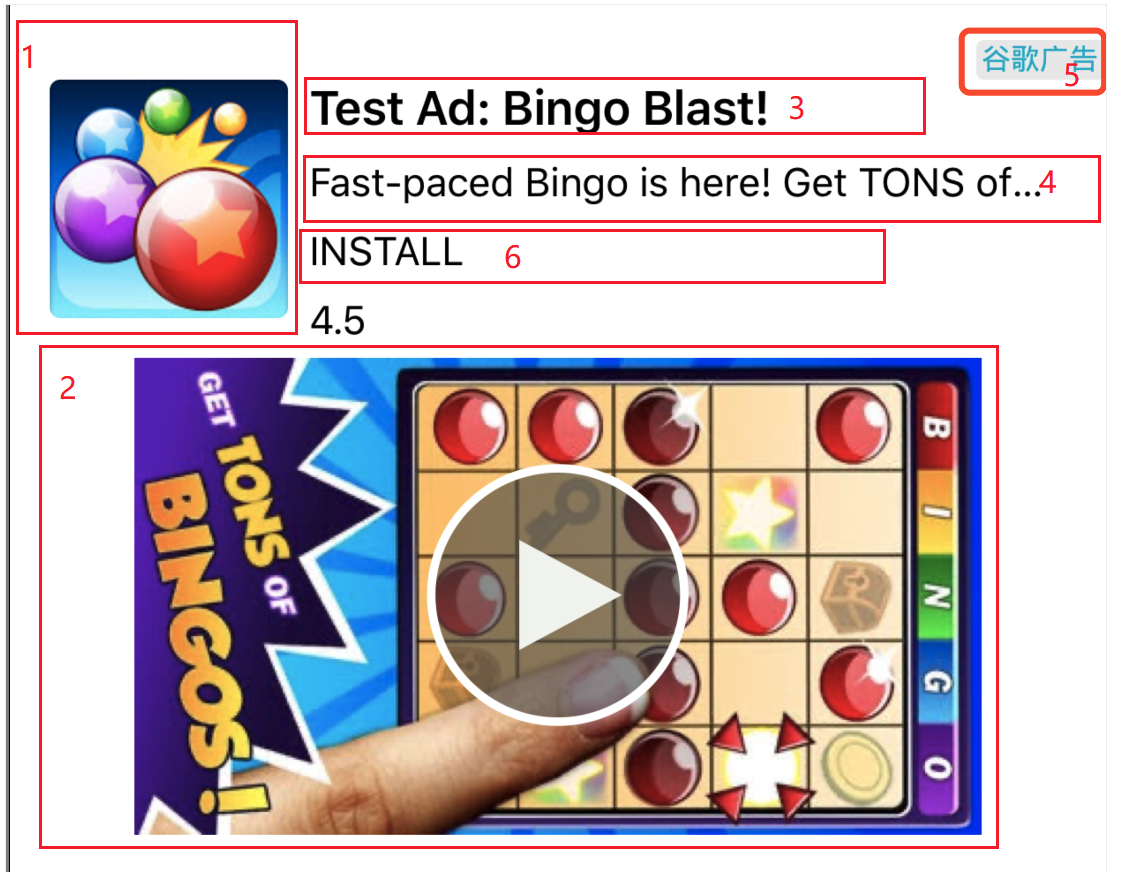
Map createNativeSubViewAttribute(
      double width,
      double height,
    { double x = 0,
      double y = 0,
      String backgroundColorStr = '#FFFFFF',
      String textColorStr = '#000000',
      String textAlignmentStr = 'left',
      double textSize = 15,
      bool isCustomClick =  true}
 )
Function description:
-
x: Horizontal coordinate position (origin at top-left corner)
-
y: Vertical coordinate position (origin at top-left corner)
-
width: Width
-
height: Height
-
backgroundColor: Background color
-
textColor: Font color (only effective for Views with Text)
-
textSize: Font size (only effective for Views with Text)
-
textAlignment: Text alignment (only effective for Views with Text and only for iOS). left: left-aligned, center: center-aligned, right: right-aligned
-
isCustomClick: Whether to download directly on click (only effective for Android and only for Tencent Ads platform app-install ads)
-
ATCustomViewNative: (Added in v6.2.37) Enumeration type for custom views (image: picture; label: text;)
-
imagePath: (Added in v6.2.37) The path where the image is placed in the development project (effective when ATCustomViewNative is specified as image)
-
title: (Added in v6.2.37) The custom text string to display (effective when ATCustomViewNative is specified as label)
1.4.2.2 Color and Height Description
About setting transparent colors:
Android: You can directly add a two-digit hexadecimal alpha value to the original setting. For example, to set the color "#ffffff" with 0 opacity, set it to "#00ffffff". This makes the color fully transparent. The alpha value can be adjusted according to actual needs.
iOS: You can only specify a fully transparent color by setting the string "clearColor". Semi-transparent colors are not supported.
Adaptive height for template rendering ads:
Developers can implement adaptive height through the following steps (adaptive height during loading is only for Pangle and GDT platforms on Android)
Note:
- When using adaptive height, taller template ads may appear. Developers can check the desired aspect ratio templates in the ad platform dashboard based on actual needs and remove templates that do not meet expectations.
- Adaptive height is not controlled by the height of parent.
- (This point is only for Android) Enable adaptive height during loading (Key must be passed: ATNativeManager.isAdaptiveHeight())
loadNativeWith() async {
        ATNativeManager.loadNativeAd(
        placementID: Configuration.nativePlacementID,
        extraMap: {
          ATCommon.getAdSizeKey(): ATNativeManager.createNativeSubViewAttribute(
            topSizeTool.getWidth(),
            topSizeTool.getHeight(),
          ),
          ATNativeManager.isAdaptiveHeight(): true
        });
}- Enable adaptive height during display (isAdaptiveHeight must be passed as true)
PlatformNativeWidget(Configuration.nativePlacementID, {...}
    ,isAdaptiveHeight: true);
1.5 Implement Native Ad Listeners
ATNativeResponse property description:
NativeStatus: Native ad status
placementID: placementID
requestMessage: Request info (error message)
extraMap: Callback Info
isDeeplinkSuccess: isDeeplinkSuccess
To get notified about various native ad events (load success/failure, impression, click, etc.), below is an example
_nativeListen() {

    ATListenerManager.nativeEventHandler.listen((value) {

      switch (value.nativeStatus) {
        // Ad load failed
        case NativeStatus.nativeAdFailToLoadAD:
          print("flutter nativeAdFailToLoadAD ---- placementID: ${value.placementID} ---- errStr:${value.requestMessage}");
          break;
        // Ad loaded successfully
        case NativeStatus.nativeAdDidFinishLoading:
          print("flutter nativeAdDidFinishLoading ---- placementID: ${value.placementID}");
          break;
        // Ad clicked
        case NativeStatus.nativeAdDidClick:
          print("flutter nativeAdDidClick ---- placementID: ${value.placementID} ---- extra:${value.extraMap}");
          break;
        // Deeplink
        case NativeStatus.nativeAdDidDeepLink:
          print("flutter nativeAdDidDeepLink ---- placementID: ${value.placementID} ---- extra:${value.extraMap} ---- isDeeplinkSuccess:${value.isDeeplinkSuccess}");
          break;
        // Ad video playback ended, some ad platforms have this callback
        case NativeStatus.nativeAdDidEndPlayingVideo:
          print("flutter nativeAdDidEndPlayingVideo ---- placementID: ${value.placementID} ---- extra:${value.extraMap}");
          break;
        // Ad entered full-screen playback, only iOS has this callback
        case NativeStatus.nativeAdEnterFullScreenVideo:
          print("flutter nativeAdEnterFullScreenVideo ---- placementID: ${value.placementID} ---- extra:${value.extraMap}");
          break;
        // Ad exited full-screen playback, only iOS has this callback
        case NativeStatus.nativeAdExitFullScreenVideoInAd:
          print("flutter nativeAdExitFullScreenVideoInAd ---- placementID: ${value.placementID} ---- extra:${value.extraMap}");
          break;
        // Ad displayed successfully
        case NativeStatus.nativeAdDidShowNativeAd:
          print("flutter nativeAdDidShowNativeAd ---- placementID: ${value.placementID} ---- extra:${value.extraMap}");
          break;
        // Ad video playback started, some ad platforms have this callback
        case NativeStatus.nativeAdDidStartPlayingVideo:
          print("flutter nativeAdDidStartPlayingVideo ---- placementID: ${value.placementID} ---- extra:${value.extraMap}");
          break;
        // Ad close button tapped, some ad platforms have this callback
        case NativeStatus.nativeAdDidTapCloseButton:
          print("flutter nativeAdDidTapCloseButton ---- placementID: ${value.placementID} ---- extra:${value.extraMap}");
          break;
        case NativeStatus.nativeAdDidCloseDetailInAdView:
          print("flutter nativeAdDidCloseDetailInAdView ---- placementID: ${value.placementID} ---- extra:${value.extraMap}");
          break;
        // Ad Draw loaded successfully, only iOS has this callback
        case NativeStatus.nativeAdDidLoadSuccessDraw:
          print("flutter nativeAdDidLoadSuccessDraw ---- placementID: ${value.placementID} ---- extra:${value.extraMap}");
          break;
        case NativeStatus.nativeAdUnknown:
          print("flutter downloadUnknown");
          break;
      }
    });
};}.cls-2{fill:%230868f7;}.cls-3{fill:url(%23未命名的渐变_44);}.cls-4{fill:%23333;}%3c/style%3e%3clinearGradient%20id='未命名的渐变_8'%20x1='33.73'%20y1='100.61'%20x2='-0.03'%20y2='-1.06'%20gradientUnits='userSpaceOnUse'%3e%3cstop%20offset='0'%20stop-color='%237ae9fb'/%3e%3cstop%20offset='0.67'%20stop-color='%232b90f8'/%3e%3cstop%20offset='1'%20stop-color='%230868f7'/%3e%3c/linearGradient%3e%3clinearGradient%20id='未命名的渐变_44'%20x1='27.86'%20y1='18.67'%20x2='68.36'%20y2='22.22'%20gradientUnits='userSpaceOnUse'%3e%3cstop%20offset='0'%20stop-color='%235ac7f2'/%3e%3cstop%20offset='1'%20stop-color='%230868f7'/%3e%3c/linearGradient%3e%3c/defs%3e%3cpath%20class='cls-1'%20d='M29,28.74V81.91l-9.51-3.68v0L8.52,74A7.17,7.17,0,0,1,4,67.32V24.54A3.76,3.76,0,0,1,9.08,21Z'/%3e%3cpath%20class='cls-2'%20d='M68.09,78.07a13.15,13.15,0,0,1-17.9,12.06L29,81.91h0V28.74L50.19,37A13.17,13.17,0,0,0,68.08,25.3h0Z'/%3e%3cpath%20class='cls-3'%20d='M68.08,25.3a13.19,13.19,0,0,1-6.73,10.87A13.09,13.09,0,0,1,50.19,37L29,28.74V6A3.76,3.76,0,0,1,34.1,2.52l25.59,9.91A13.22,13.22,0,0,1,68.08,25.3Z'/%3e%3cpath%20class='cls-4'%20d='M129.06,81.76a4.33,4.33,0,0,1-3.19-1.31,4.4,4.4,0,0,1-1.31-3.24V56.86H97.65V77.21a4.36,4.36,0,0,1-1.35,3.2A4.68,4.68,0,0,1,93,81.76a4.32,4.32,0,0,1-3.19-1.31,4.37,4.37,0,0,1-1.32-3.24V27.27A4.58,4.58,0,0,1,89.83,24a4.59,4.59,0,0,1,7.82,3.27V48.15h26.91V27.27A4.58,4.58,0,0,1,125.91,24a4.59,4.59,0,0,1,7.82,3.27V77.21a4.37,4.37,0,0,1-1.36,3.2A4.65,4.65,0,0,1,129.06,81.76Z'/%3e%3cpath%20class='cls-4'%20d='M163.77,81.66c-6.57,0-11.76-1.92-15.44-5.7s-5.54-9.07-5.54-15.74a26.76,26.76,0,0,1,2.09-10.43,17.72,17.72,0,0,1,6.67-8.06,19.15,19.15,0,0,1,10.68-2.95,19,19,0,0,1,10.46,2.8,18.7,18.7,0,0,1,6.55,7.36,22.53,22.53,0,0,1,2.36,10.28A4.51,4.51,0,0,1,177,63.77H152.23a10.8,10.8,0,0,0,3.49,6.65c2,1.68,4.88,2.52,8.66,2.52a22.25,22.25,0,0,0,7.54-1.21c.74-.3,1.55-.67,2.37-1.07a3.75,3.75,0,0,1,1.84-.4,4.09,4.09,0,0,1,3,1.15,4,4,0,0,1,1.12,3,4.38,4.38,0,0,1-2.58,3.82,32.34,32.34,0,0,1-6.36,2.61A28.67,28.67,0,0,1,163.77,81.66ZM172.4,55.9a9.72,9.72,0,0,0-1.63-4.56A9.9,9.9,0,0,0,167,48a10.38,10.38,0,0,0-4.64-1.14,12,12,0,0,0-4.77,1.06,9.54,9.54,0,0,0-4.89,5.66,11.78,11.78,0,0,0-.51,2.3Z'/%3e%3cpath%20class='cls-4'%20d='M193,81.64a4.49,4.49,0,0,1-4.51-4.55V27.28A4.58,4.58,0,0,1,189.84,24a4.48,4.48,0,0,1,3.28-1.36A4.36,4.36,0,0,1,196.35,24a4.46,4.46,0,0,1,1.31,3.31V77.09a4.34,4.34,0,0,1-1.35,3.2A4.67,4.67,0,0,1,193,81.64Z'/%3e%3cpath%20class='cls-4'%20d='M263.79,81.71a5.7,5.7,0,0,1-4.2-1.74,5.76,5.76,0,0,1-1.73-4.19V27.37a4.58,4.58,0,0,1,1.35-3.27A4.59,4.59,0,0,1,267,27.37V72.53h24a4.58,4.58,0,0,1,3.27,7.82A4.66,4.66,0,0,1,291,81.71Z'/%3e%3cpath%20class='cls-4'%20d='M424.48,81.74a4.71,4.71,0,0,1-2.71-.88,5.43,5.43,0,0,1-1-1l-.07-.09-12.41-17-5.41,5v9.44a4.31,4.31,0,0,1-1.36,3.19,4.66,4.66,0,0,1-3.3,1.36A4.29,4.29,0,0,1,395,80.42a4.36,4.36,0,0,1-1.32-3.23V27.37A4.58,4.58,0,0,1,395,24.1a4.52,4.52,0,0,1,6.58.12,4.54,4.54,0,0,1,1.24,3.15V56.31l17.72-16.38.05,0a4.8,4.8,0,0,1,2.94-1.11,4.4,4.4,0,0,1,3.27,1.2,4.57,4.57,0,0,1,1.2,3.27,4.44,4.44,0,0,1-.77,2.33,7.45,7.45,0,0,1-1.43,1.65l-11,9.64,13.34,17.68a5,5,0,0,1,1,2.71,4.12,4.12,0,0,1-1.36,3.24A4.64,4.64,0,0,1,424.48,81.74Z'/%3e%3cpath%20class='cls-4'%20d='M317.93,81.76a21.5,21.5,0,1,1,21.17-21.5A21.37,21.37,0,0,1,317.93,81.76Zm0-34.1a12.61,12.61,0,1,0,12.42,12.6A12.52,12.52,0,0,0,317.93,47.66Z'/%3e%3cpath%20class='cls-4'%20d='M212.18,101.22a4.12,4.12,0,0,1-3.05-1.26,4.17,4.17,0,0,1-1.26-3.1V43.34a4.37,4.37,0,0,1,1.3-3.14,4.26,4.26,0,0,1,3.13-1.3,4.19,4.19,0,0,1,3.1,1.26,4.32,4.32,0,0,1,1.26,3.16,20.77,20.77,0,0,1,13-4.54,21.51,21.51,0,0,1,0,43,20.51,20.51,0,0,1-13-4.57V96.86a4.15,4.15,0,0,1-1.3,3.06A4.5,4.5,0,0,1,212.18,101.22Zm17.43-53.63c-6.23,0-12.93,4.11-12.93,12.72a12.73,12.73,0,0,0,25.46,0A12.71,12.71,0,0,0,229.61,47.59Z'/%3e%3cpath%20class='cls-4'%20d='M365.76,81.76a21.5,21.5,0,1,1,21.18-21.5A21.37,21.37,0,0,1,365.76,81.76Zm0-34.1a12.61,12.61,0,1,0,12.42,12.6A12.52,12.52,0,0,0,365.76,47.66Z'/%3e%3c/svg%3e)