
TopOn Unity3D plugin (2.0.0+) import instructions
Plugin Introduction
Plugin 2.1.0
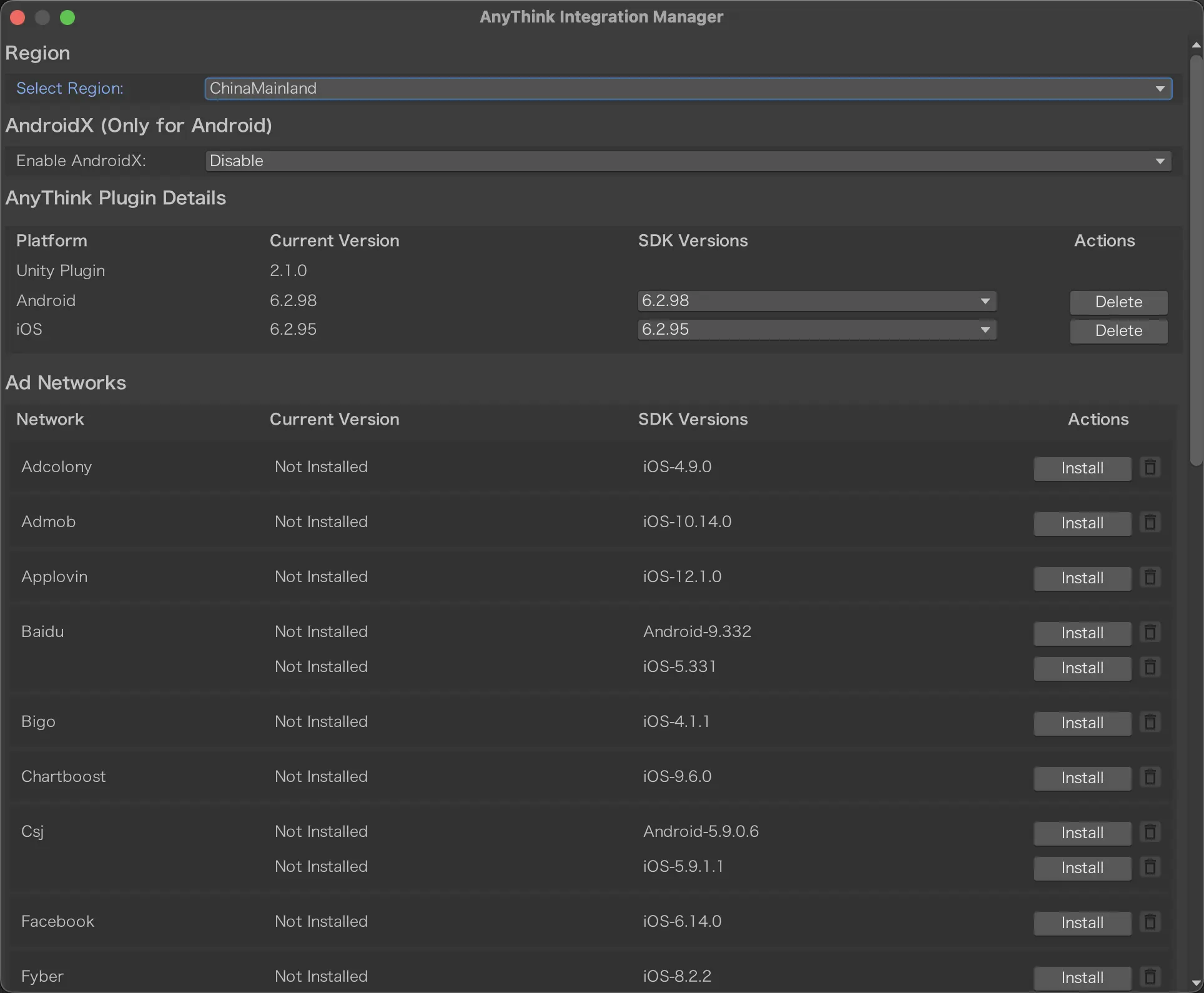
New Features of the Plugin
- Supports separate integration for Android and iOS;
- Supports downloading both domestic and overseas regions simultaneously;
- Supports selecting multiple SDK versions;
- Modified the storage data method for Network installation;
Notes
- If you have integrated the Android Jingdong SDK, you need to set AndroidX to Enable, because the Jingdong SDK requires the AndroidX environment.
- If you integrate packages from both regions simultaneously, there will be library conflicts causing build failures for both Android and iOS. You need to specially handle packages you don't want to compile at runtime or delete the SDK for a specific region.
- When upgrading from plugin version 2.0.0-2.0.3 to version 2.1.0, you need to delete the Assets/AnyThinkAds and Assets/AnyThinkPlugins folders.
- Taku iOS SDK requires version v6.4.93 or lower
Plugin 2.0.0~2.0.3
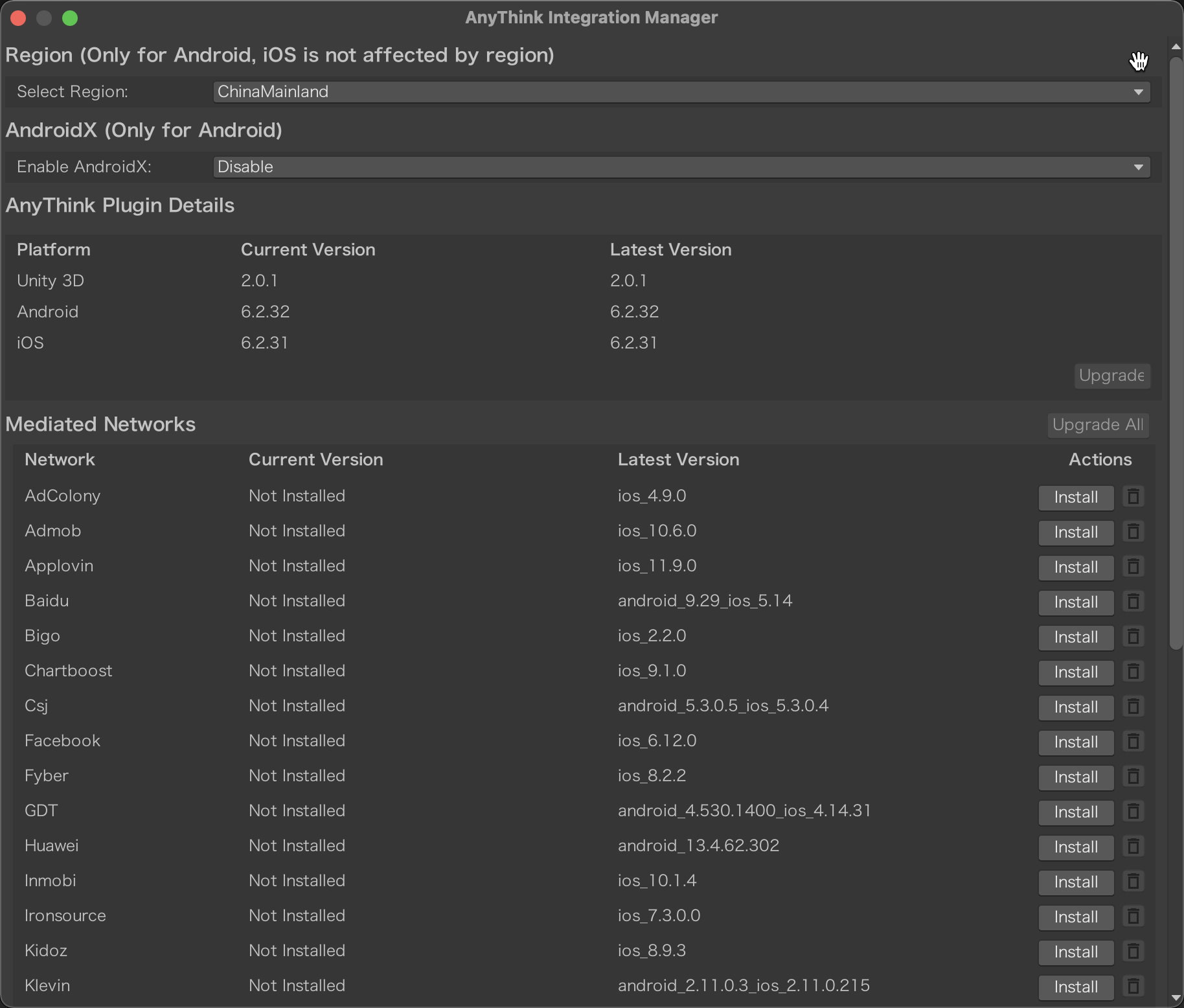
- Region: The plugin provides two region options: China (ChinaMainland) and Overseas (Overseas), which are only used for Android to download the corresponding region's networks. iOS supports global release, so either region can be used.
- AndroidX: A collection of support libraries for developing Android applications, applicable only to the Android platform. When selecting the China region, an option is provided to determine whether to use AndroidX. It is worth noting that in the Overseas region, AndroidX is required by default.
- Upgrade: If one of the version numbers (Unity 3D Plugin, Android, iOS) is behind the latest version, it is displayed as clickable. After clicking, if Android or iOS needs to be updated, the core package will be automatically downloaded and updated. If the Unity 3D Plugin version needs to be updated, it will redirect to the plugin download page, where you need to manually download the latest plugin and re-import it.
- Upgrade All: If there are networks in the currently installed network list that need to be updated, it is displayed as clickable. After clicking, all networks that need updating will be updated at once.
- Install: Click to install a network.
- Delete Button: Delete an installed network.
Notes
- If you switch regions, the installed network lists for both Android and iOS will be cleared. Please confirm the desired region before switching to avoid needing to re-install networks.
- Starting from plugin version 2.0.1, the domestic Pangle uses the Csj name, and the overseas Pangle uses the Pangle name.
Plugin Import
Follow the steps below to import the plugin:
- Open Unity, and select Assets > Import Package > Custom Package in order.
- Select the Unity plugin file you downloaded.
- In the Import Unity Package dialog, click Import.
- After the plugin is imported, check the Unity menu bar options and click AnyThink to open the plugin.
Note: If you have imported an old plugin, you need to delete the old plugin first. Simply delete the AnyThinkPlugin directory under the Assets directory.
Integration Environment
- Unity 2019.x.x or later.
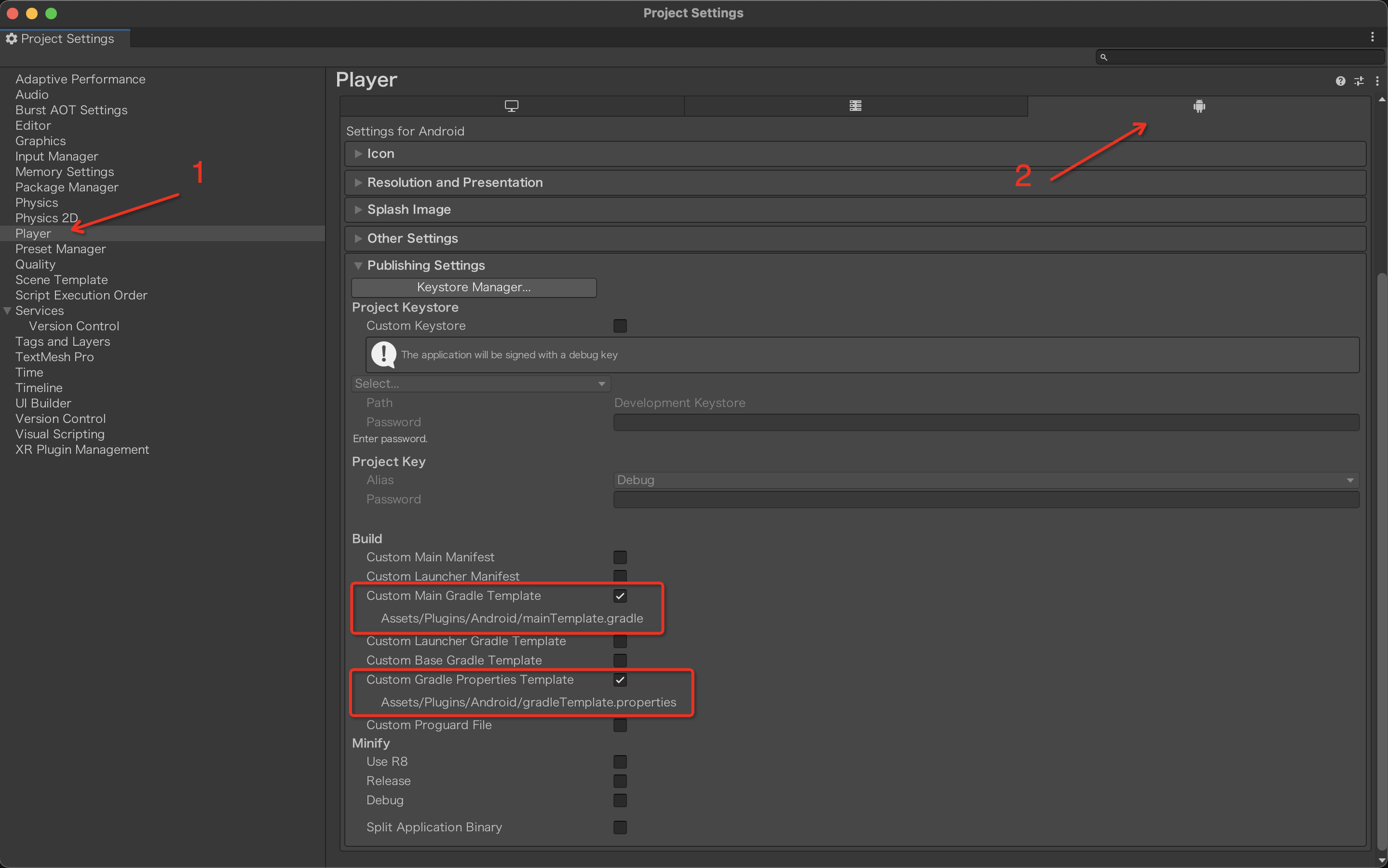
- Android Build: You need to check "Custom Main Gradle Template" and "Custom Gradle Properties Template" as shown in the image below.
- iOS Build: If you have enabled Bitcode, your build will fail. Apple has deprecated Bitcode in Xcode 14. The AnyThink plugin requires CocoaPods. If CocoaPods is not installed, you can follow the instructions in the CocoaPods Getting Started Guide to install CocoaPods.
- After installing dependencies using CocoaPods, an xcworkspace project file will be generated. Please use this file to enter the project for subsequent operations.
Notes
iOS Crash When Running, Console Error
If you have chosen to integrate third-party ad platform SDKs that contain dynamic libraries (e.g., GDT, Pangle, AppLovin, Kuaishou, Inmobi, Kwai, etc.), used CocoaPods for integration, and encountered errors like the following at runtime:
xxxxxxxxx/Frameworks/GDTMobSDK.framework/GDTMobSDK' (no such file)You can handle it using the following methods:
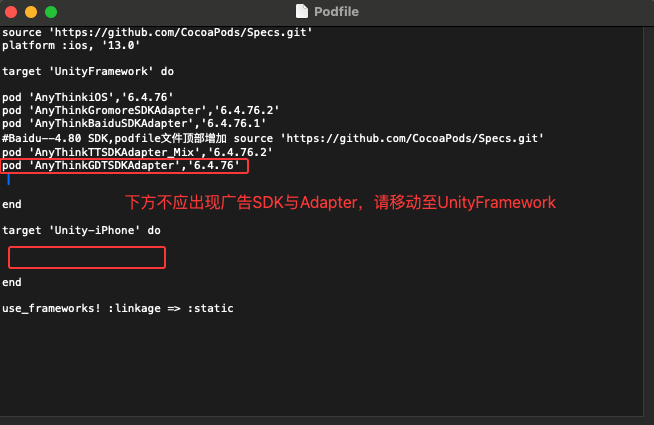
Method 1: Based on the added Adapters, add the third-party SDK dependencies in the Podfile's Unity-iPhone target. Then re-run pod install to resolve the issue.
target 'Unity-iPhone' do

  #pod 'AppLovinSDK'

  #pod 'InMobiSDK'

  #pod 'HyBid'
  pod 'KwaiAdsSDK'
  pod 'MaioSDK-v2',
  pod 'OMSDK_Appodeal'

  pod 'OgurySdk', '5.0.2'

  pod 'smaato-ios-sdk', '22.9.3'
  pod 'smaato-ios-sdk/InApp'

  pod 'StartAppSDK', '4.10.4'
end
Method 2: Follow the three steps shown in the image below for manual processing (using Kuaishou as an example; for similar errors, you can see the SDK name causing the error in the console, and process each SDK reported in the console in turn, such as GDTMobSDK in the example above)
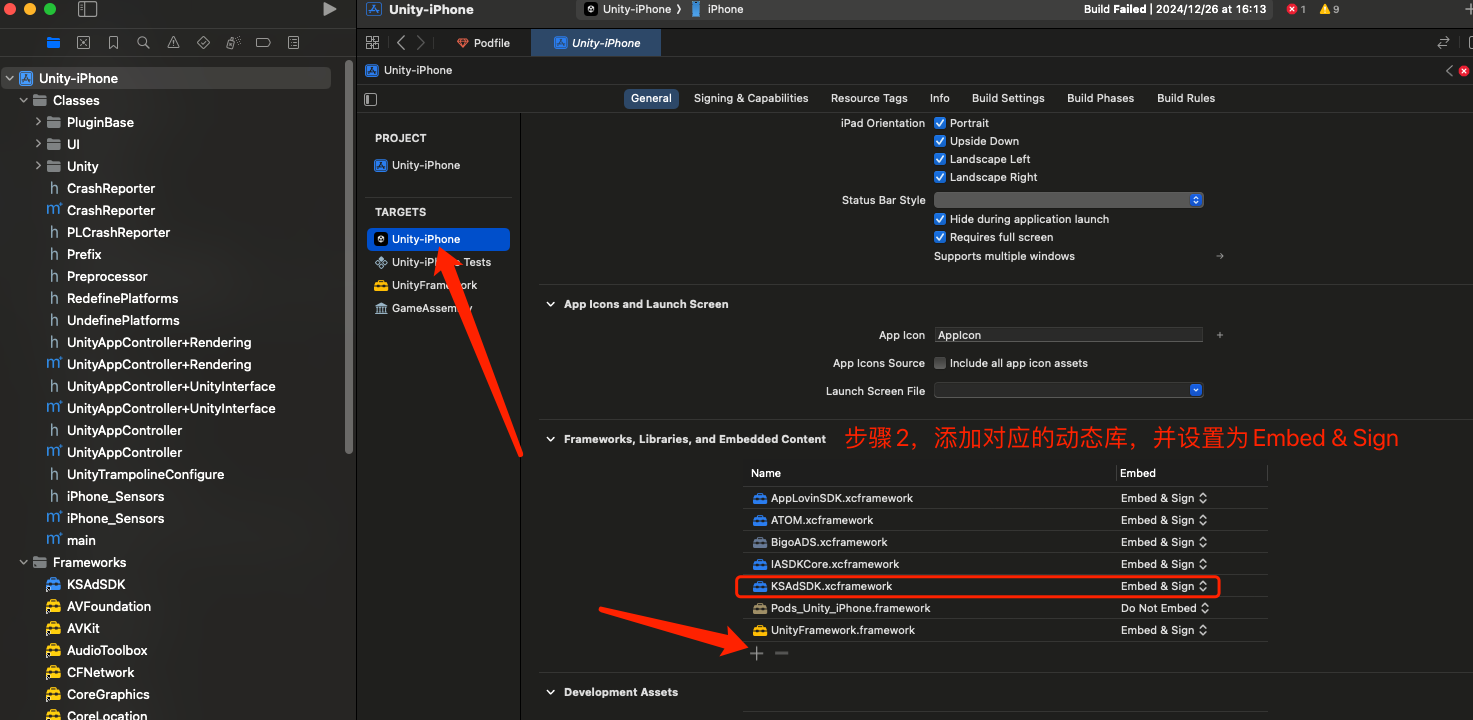
iOS Pod Network Error, Unable to Pod Successfully
Please try adding the GitHub source at the top of the podfile and removing other sources. Ensure that the current network can access GitHub. If you have a proxy, check whether the terminal has proxy enabled.
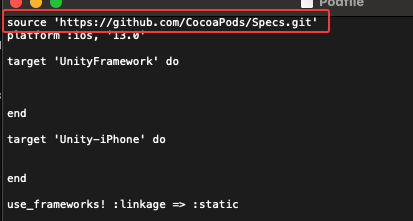
source 'https://github.com/CocoaPods/Specs.git'Android Cache Handling
Before building Android, to avoid being affected by the cache and causing some networks not to be integrated, it is recommended to click Force Resolve following the steps below:
Menu bar Assets > External Dependency Manager > Android Resolver > Force Resolve.
UnityAds Ad Platform
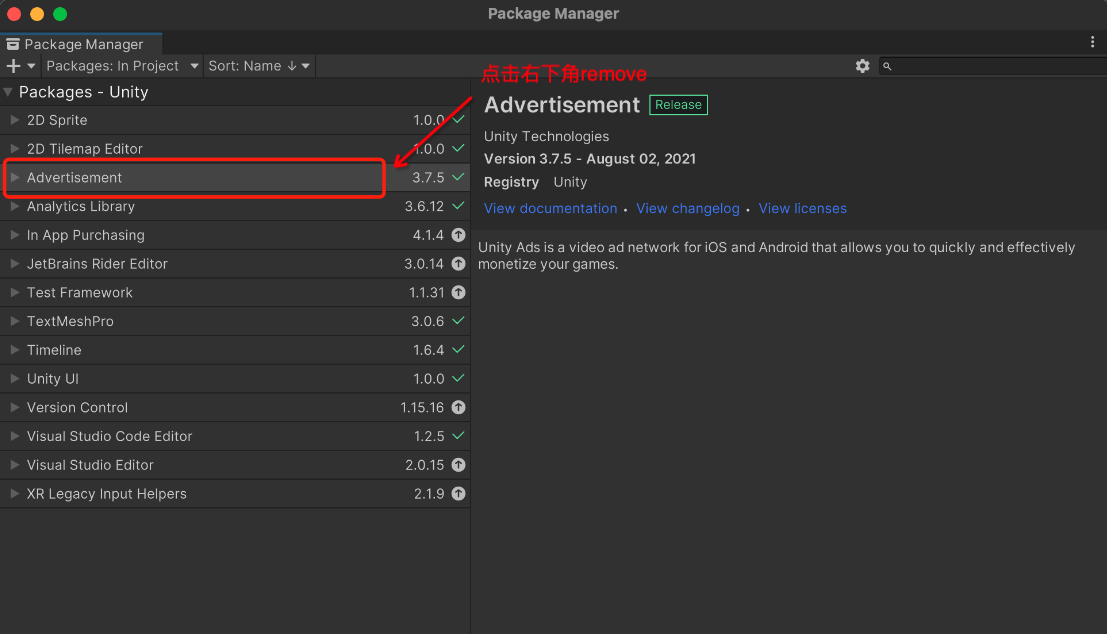
If you need to integrate the UnityAds ad platform, please check whether the Unity Ads plugin has been introduced in the Package Manager (Window>Package Manager) of the Unity project. If so, please remove it before integrating, otherwise it may cause integration conflicts, Google Store review failures, and other issues.
;}.cls-2{fill:%230868f7;}.cls-3{fill:url(%23未命名的渐变_44);}.cls-4{fill:%23333;}%3c/style%3e%3clinearGradient%20id='未命名的渐变_8'%20x1='33.73'%20y1='100.61'%20x2='-0.03'%20y2='-1.06'%20gradientUnits='userSpaceOnUse'%3e%3cstop%20offset='0'%20stop-color='%237ae9fb'/%3e%3cstop%20offset='0.67'%20stop-color='%232b90f8'/%3e%3cstop%20offset='1'%20stop-color='%230868f7'/%3e%3c/linearGradient%3e%3clinearGradient%20id='未命名的渐变_44'%20x1='27.86'%20y1='18.67'%20x2='68.36'%20y2='22.22'%20gradientUnits='userSpaceOnUse'%3e%3cstop%20offset='0'%20stop-color='%235ac7f2'/%3e%3cstop%20offset='1'%20stop-color='%230868f7'/%3e%3c/linearGradient%3e%3c/defs%3e%3cpath%20class='cls-1'%20d='M29,28.74V81.91l-9.51-3.68v0L8.52,74A7.17,7.17,0,0,1,4,67.32V24.54A3.76,3.76,0,0,1,9.08,21Z'/%3e%3cpath%20class='cls-2'%20d='M68.09,78.07a13.15,13.15,0,0,1-17.9,12.06L29,81.91h0V28.74L50.19,37A13.17,13.17,0,0,0,68.08,25.3h0Z'/%3e%3cpath%20class='cls-3'%20d='M68.08,25.3a13.19,13.19,0,0,1-6.73,10.87A13.09,13.09,0,0,1,50.19,37L29,28.74V6A3.76,3.76,0,0,1,34.1,2.52l25.59,9.91A13.22,13.22,0,0,1,68.08,25.3Z'/%3e%3cpath%20class='cls-4'%20d='M129.06,81.76a4.33,4.33,0,0,1-3.19-1.31,4.4,4.4,0,0,1-1.31-3.24V56.86H97.65V77.21a4.36,4.36,0,0,1-1.35,3.2A4.68,4.68,0,0,1,93,81.76a4.32,4.32,0,0,1-3.19-1.31,4.37,4.37,0,0,1-1.32-3.24V27.27A4.58,4.58,0,0,1,89.83,24a4.59,4.59,0,0,1,7.82,3.27V48.15h26.91V27.27A4.58,4.58,0,0,1,125.91,24a4.59,4.59,0,0,1,7.82,3.27V77.21a4.37,4.37,0,0,1-1.36,3.2A4.65,4.65,0,0,1,129.06,81.76Z'/%3e%3cpath%20class='cls-4'%20d='M163.77,81.66c-6.57,0-11.76-1.92-15.44-5.7s-5.54-9.07-5.54-15.74a26.76,26.76,0,0,1,2.09-10.43,17.72,17.72,0,0,1,6.67-8.06,19.15,19.15,0,0,1,10.68-2.95,19,19,0,0,1,10.46,2.8,18.7,18.7,0,0,1,6.55,7.36,22.53,22.53,0,0,1,2.36,10.28A4.51,4.51,0,0,1,177,63.77H152.23a10.8,10.8,0,0,0,3.49,6.65c2,1.68,4.88,2.52,8.66,2.52a22.25,22.25,0,0,0,7.54-1.21c.74-.3,1.55-.67,2.37-1.07a3.75,3.75,0,0,1,1.84-.4,4.09,4.09,0,0,1,3,1.15,4,4,0,0,1,1.12,3,4.38,4.38,0,0,1-2.58,3.82,32.34,32.34,0,0,1-6.36,2.61A28.67,28.67,0,0,1,163.77,81.66ZM172.4,55.9a9.72,9.72,0,0,0-1.63-4.56A9.9,9.9,0,0,0,167,48a10.38,10.38,0,0,0-4.64-1.14,12,12,0,0,0-4.77,1.06,9.54,9.54,0,0,0-4.89,5.66,11.78,11.78,0,0,0-.51,2.3Z'/%3e%3cpath%20class='cls-4'%20d='M193,81.64a4.49,4.49,0,0,1-4.51-4.55V27.28A4.58,4.58,0,0,1,189.84,24a4.48,4.48,0,0,1,3.28-1.36A4.36,4.36,0,0,1,196.35,24a4.46,4.46,0,0,1,1.31,3.31V77.09a4.34,4.34,0,0,1-1.35,3.2A4.67,4.67,0,0,1,193,81.64Z'/%3e%3cpath%20class='cls-4'%20d='M263.79,81.71a5.7,5.7,0,0,1-4.2-1.74,5.76,5.76,0,0,1-1.73-4.19V27.37a4.58,4.58,0,0,1,1.35-3.27A4.59,4.59,0,0,1,267,27.37V72.53h24a4.58,4.58,0,0,1,3.27,7.82A4.66,4.66,0,0,1,291,81.71Z'/%3e%3cpath%20class='cls-4'%20d='M424.48,81.74a4.71,4.71,0,0,1-2.71-.88,5.43,5.43,0,0,1-1-1l-.07-.09-12.41-17-5.41,5v9.44a4.31,4.31,0,0,1-1.36,3.19,4.66,4.66,0,0,1-3.3,1.36A4.29,4.29,0,0,1,395,80.42a4.36,4.36,0,0,1-1.32-3.23V27.37A4.58,4.58,0,0,1,395,24.1a4.52,4.52,0,0,1,6.58.12,4.54,4.54,0,0,1,1.24,3.15V56.31l17.72-16.38.05,0a4.8,4.8,0,0,1,2.94-1.11,4.4,4.4,0,0,1,3.27,1.2,4.57,4.57,0,0,1,1.2,3.27,4.44,4.44,0,0,1-.77,2.33,7.45,7.45,0,0,1-1.43,1.65l-11,9.64,13.34,17.68a5,5,0,0,1,1,2.71,4.12,4.12,0,0,1-1.36,3.24A4.64,4.64,0,0,1,424.48,81.74Z'/%3e%3cpath%20class='cls-4'%20d='M317.93,81.76a21.5,21.5,0,1,1,21.17-21.5A21.37,21.37,0,0,1,317.93,81.76Zm0-34.1a12.61,12.61,0,1,0,12.42,12.6A12.52,12.52,0,0,0,317.93,47.66Z'/%3e%3cpath%20class='cls-4'%20d='M212.18,101.22a4.12,4.12,0,0,1-3.05-1.26,4.17,4.17,0,0,1-1.26-3.1V43.34a4.37,4.37,0,0,1,1.3-3.14,4.26,4.26,0,0,1,3.13-1.3,4.19,4.19,0,0,1,3.1,1.26,4.32,4.32,0,0,1,1.26,3.16,20.77,20.77,0,0,1,13-4.54,21.51,21.51,0,0,1,0,43,20.51,20.51,0,0,1-13-4.57V96.86a4.15,4.15,0,0,1-1.3,3.06A4.5,4.5,0,0,1,212.18,101.22Zm17.43-53.63c-6.23,0-12.93,4.11-12.93,12.72a12.73,12.73,0,0,0,25.46,0A12.71,12.71,0,0,0,229.61,47.59Z'/%3e%3cpath%20class='cls-4'%20d='M365.76,81.76a21.5,21.5,0,1,1,21.18-21.5A21.37,21.37,0,0,1,365.76,81.76Zm0-34.1a12.61,12.61,0,1,0,12.42,12.6A12.52,12.52,0,0,0,365.76,47.66Z'/%3e%3c/svg%3e)