
SDK Preset Strategy
To reduce the time Taku SDK takes to fetch Taku Ad Placement strategy on the first request, and to avoid scenarios where Taku SDK fails to fetch the Taku Ad Placement strategy, Taku supports preloading Taku Ad Placement strategy locally within the app.
Taku SDK supports all ad types using SDK Preset Strategy: Splash, Rewarded Video, Interstitial, Native, and Banner.
1. Introduction
Taku supports developers exporting Ad Placement-level SDK Preset Strategy and preloading it into the app before release. When the Ad Placement is requested for the first time, Taku uses the SDK Preset Strategy to request ads, improving ad request efficiency on the first request.
Notes:
- Preloading SDK strategy locally in the app requires updating to Taku SDK v6.1.78 or above.
2. SDK Preset Strategy is only used for the first Ad Placement request. Once Taku SDK successfully fetches the online Ad Placement strategy, subsequent requests will use the Taku online Ad Placement strategy.
2. Creating a Traffic Group for SDK Preset Strategy
Note:
If an A/B test is currently in progress for the ad placement (including traffic group A/B tests and ad placement A/B tests), creating an SDK preset strategy group is not supported at this time.
Using SDK Preset Strategy requires creating a specific traffic group. The process is as follows:
(1) On the Mediation Management page, add a traffic group and select SDK Built-in Strategy as the traffic group rule.
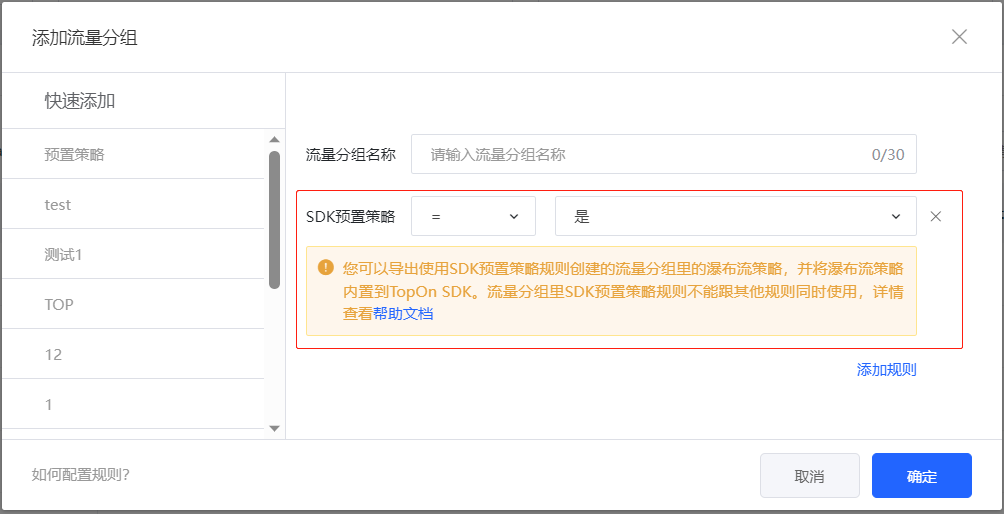
(2) The SDK Preset Strategy rule in a traffic group cannot be used simultaneously with other rules.
(3) SDK Preset Strategy traffic group's Ad Placement strategy is only for export and preloading into your app.
(4) If you modify the SDK Preset Strategy, you need to re-export and preload it into your app.
(5) You can create multiple SDK Preset Strategies under a Taku Ad Placement. To better analyze the performance of SDK Preset Strategy across different Taku SDK versions, it is recommended to create different SDK Preset Strategies for different Taku SDK versions.
3. Configuring SDK Preset Strategy
After creating the SDK Preset Strategy traffic group, you can configure this SDK Preset Strategy just like other traffic groups, such as adding/editing/copying Ad Sources, modifying Advanced Settings, etc.
4. Exporting SDK Preset Strategy
(1) After modifying the SDK Preset Strategy's Ad Placement strategy, the Taku server needs 15 minutes to complete the new strategy synchronization. It is recommended to wait 15 minutes after completing the SDK Preset Strategy configuration before exporting the SDK Preset Strategy.
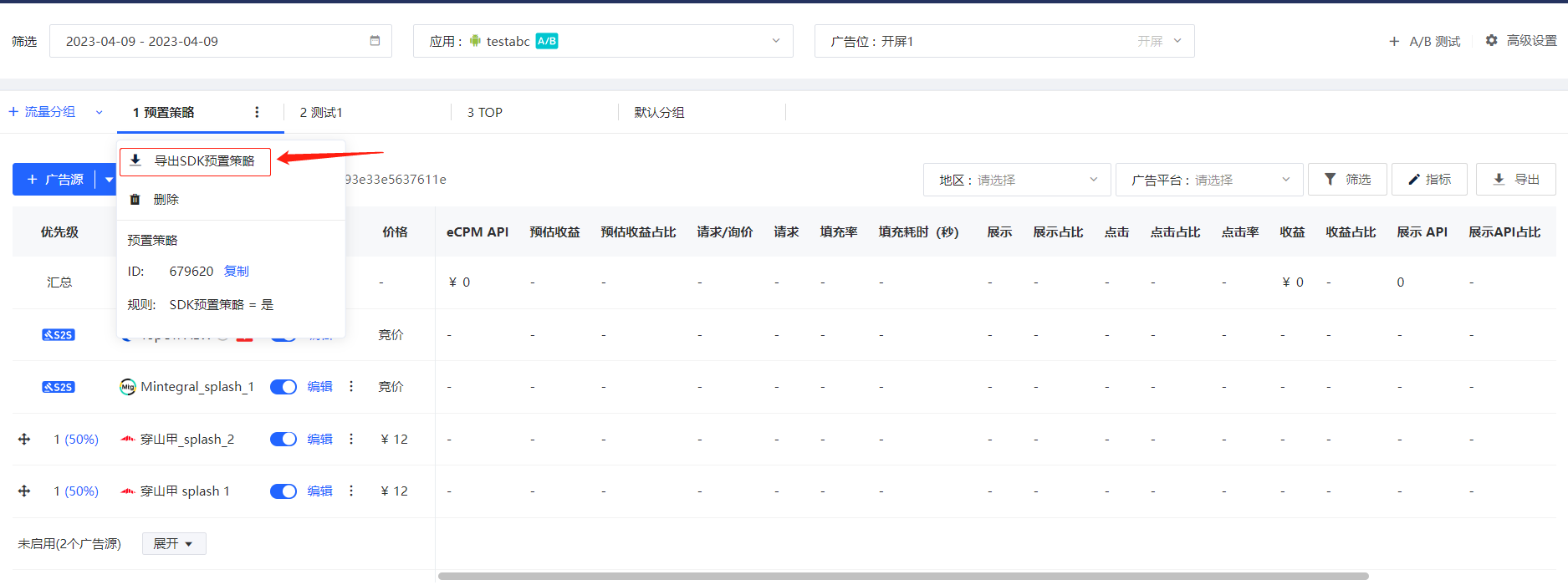
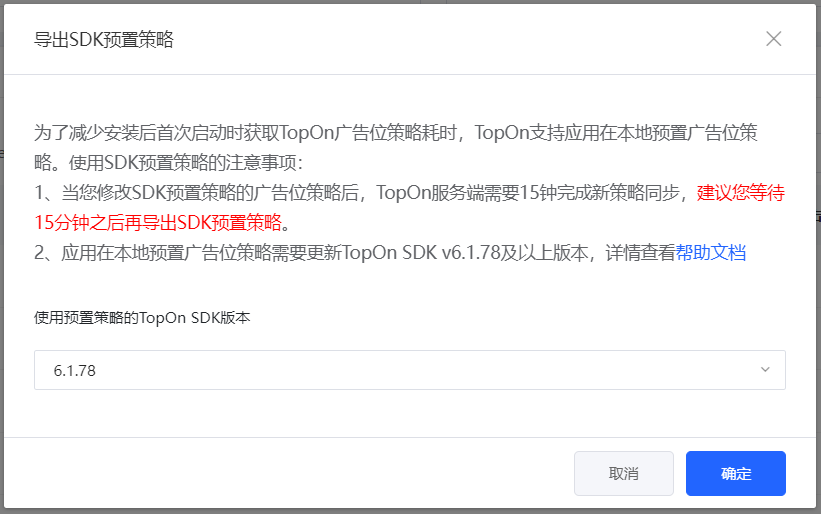
(2) When exporting SDK Preset Strategy, you need to select the Taku SDK version used in your app. Ensure that the exported Taku SDK version matches the Taku SDK version integrated in your app. (SDK version >= Preset Strategy export version)
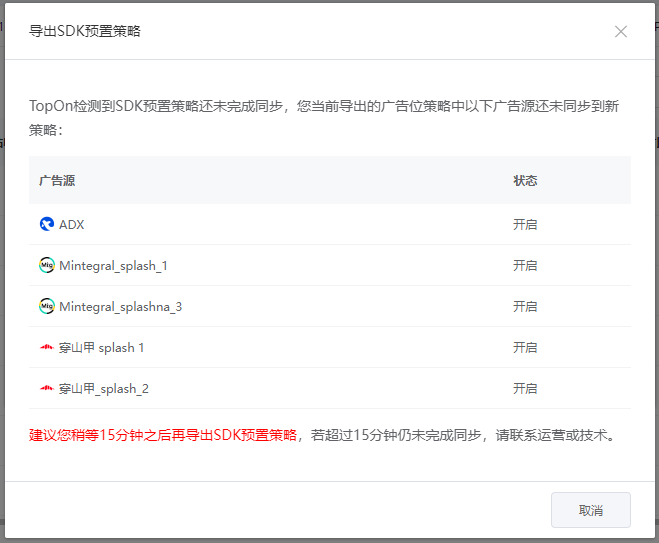
(3) If the following prompt appears when exporting SDK Preset Strategy, it means the Taku server has not yet completed the Ad Placement strategy synchronization for the SDK Preset Strategy. It is recommended to wait 15 minutes before exporting the SDK Preset Strategy again.
(4) After successfully exporting the SDK Preset Strategy, Taku generates a json file named after the Ad Placement ID.
- Importing SDK Preset Strategy into the App
- Place the exported json file into your app project, and follow the SDK integration documentation to complete the SDK Preset Strategy code integration in the app project.
- Refer to the Taku SDK integration instructions below.
5.1 Android Integration Instructions
(1) Create a directory named localStrategy under the project's src/main/assets directory. The directory naming rule can be customized and is used in the following steps.
(2) Place the json file exported from the backend into the newly created directory src/main/assets/localStrategy.
(3) Simply call the ATSDK#setLocalStrategyAssetPath(Context context, String path) API before initiating ad loading. The Path parameter is the directory name localStrategy created in step one. Sample code:
// Called in Application#onCreate()
public class DemoApplication extends Application {
      @Override
    public void onCreate() {
        super.onCreate();
             //...
          ATSDK.setLocalStrategyAssetPath(this, "localStrategy");
          //...
    }
}
5.2 iOS Integration Instructions
(1) Import the json file exported from the backend into the project.
(2) Call the setPresetPlacementConfigPathBundle: API before initiating ad loading. The Bundle parameter is the Bundle where the json file was imported into the project. Sample code:
// Pass the Bundle where the json file was imported into the project. This example uses mainBundle
[[ATAPI sharedInstance] setPresetPlacementConfigPathBundle:[NSBundle mainBundle]];
6. Viewing SDK Preset Strategy Data
(1) You can view the SDK Preset Strategy traffic group on the Mediation Management page. You can also filter by A/B Test and Traffic Group in the Comprehensive Report to view the SDK Preset Strategy traffic group data.
(2) If the Ad Placement already had an SDK Preset Strategy traffic group created before enabling A/B Test, after enabling A/B Test, the SDK Preset Strategy traffic group will also be copied to the experiment group with the smallest ID in the A/B Test.
(3) After enabling A/B Test, the original SDK Preset Strategy traffic group's data can be viewed under Ungrouped.
7. FAQ
(1) How long after completing SDK Preset Strategy configuration can I export?
Answer: After modifying the SDK Preset Strategy's Ad Placement strategy, the Taku server needs 15 minutes to complete the new strategy synchronization. It is recommended to wait 15 minutes after completing the SDK Preset Strategy configuration before exporting the SDK Preset Strategy.
(2) Do I need to re-import the Taku SDK Preset Strategy file every time I release an app update?
Answer: It is recommended to re-import the Taku SDK Preset Strategy file in the following situations:
(1) If this app release includes a Taku SDK update, it is recommended to re-export the SDK Preset Strategy for the updated Taku SDK version and preload it into the app (ensure the exported Taku SDK version matches the Taku SDK version integrated in your app).
(2) When you have modified the SDK Preset Strategy Ad Placement strategy, it is recommended to re-import the Taku SDK Preset Strategy in the next app release.
(3) What is the impact if the new app version updates Taku SDK but does not update the old SDK Preset Strategy file?
Answer: The new version of Taku SDK will be backward-compatible with the old version of the SDK Preset Strategy file. If the new version adds new Ad Placement strategy features, but your app has not re-imported the corresponding version of the SDK Preset Strategy file, the new features of the new Taku SDK version may not take effect. To ensure better monetization results, if you have updated the Taku SDK version, it is recommended to re-export the SDK Preset Strategy for the updated Taku SDK version and preload it into the app.
Note: Older versions of Taku SDK cannot use newer versions of the SDK Preset Strategy file.
(4) How to improve first-launch Splash loading efficiency?
For v6.1.78 and above, refer to the following optimization suggestions:
-
Add a Fallback Ad Source to the Splash Ad Placement's SDK Preset Strategy. Refer to Fallback Ad to configure the Ad Source (you do not need to export the Fallback Ad Source configuration).
-
Use SDK Preset Strategy for the Splash Ad Placement during app integration.
;}.cls-2{fill:%230868f7;}.cls-3{fill:url(%23未命名的渐变_44);}.cls-4{fill:%23333;}%3c/style%3e%3clinearGradient%20id='未命名的渐变_8'%20x1='33.73'%20y1='100.61'%20x2='-0.03'%20y2='-1.06'%20gradientUnits='userSpaceOnUse'%3e%3cstop%20offset='0'%20stop-color='%237ae9fb'/%3e%3cstop%20offset='0.67'%20stop-color='%232b90f8'/%3e%3cstop%20offset='1'%20stop-color='%230868f7'/%3e%3c/linearGradient%3e%3clinearGradient%20id='未命名的渐变_44'%20x1='27.86'%20y1='18.67'%20x2='68.36'%20y2='22.22'%20gradientUnits='userSpaceOnUse'%3e%3cstop%20offset='0'%20stop-color='%235ac7f2'/%3e%3cstop%20offset='1'%20stop-color='%230868f7'/%3e%3c/linearGradient%3e%3c/defs%3e%3cpath%20class='cls-1'%20d='M29,28.74V81.91l-9.51-3.68v0L8.52,74A7.17,7.17,0,0,1,4,67.32V24.54A3.76,3.76,0,0,1,9.08,21Z'/%3e%3cpath%20class='cls-2'%20d='M68.09,78.07a13.15,13.15,0,0,1-17.9,12.06L29,81.91h0V28.74L50.19,37A13.17,13.17,0,0,0,68.08,25.3h0Z'/%3e%3cpath%20class='cls-3'%20d='M68.08,25.3a13.19,13.19,0,0,1-6.73,10.87A13.09,13.09,0,0,1,50.19,37L29,28.74V6A3.76,3.76,0,0,1,34.1,2.52l25.59,9.91A13.22,13.22,0,0,1,68.08,25.3Z'/%3e%3cpath%20class='cls-4'%20d='M129.06,81.76a4.33,4.33,0,0,1-3.19-1.31,4.4,4.4,0,0,1-1.31-3.24V56.86H97.65V77.21a4.36,4.36,0,0,1-1.35,3.2A4.68,4.68,0,0,1,93,81.76a4.32,4.32,0,0,1-3.19-1.31,4.37,4.37,0,0,1-1.32-3.24V27.27A4.58,4.58,0,0,1,89.83,24a4.59,4.59,0,0,1,7.82,3.27V48.15h26.91V27.27A4.58,4.58,0,0,1,125.91,24a4.59,4.59,0,0,1,7.82,3.27V77.21a4.37,4.37,0,0,1-1.36,3.2A4.65,4.65,0,0,1,129.06,81.76Z'/%3e%3cpath%20class='cls-4'%20d='M163.77,81.66c-6.57,0-11.76-1.92-15.44-5.7s-5.54-9.07-5.54-15.74a26.76,26.76,0,0,1,2.09-10.43,17.72,17.72,0,0,1,6.67-8.06,19.15,19.15,0,0,1,10.68-2.95,19,19,0,0,1,10.46,2.8,18.7,18.7,0,0,1,6.55,7.36,22.53,22.53,0,0,1,2.36,10.28A4.51,4.51,0,0,1,177,63.77H152.23a10.8,10.8,0,0,0,3.49,6.65c2,1.68,4.88,2.52,8.66,2.52a22.25,22.25,0,0,0,7.54-1.21c.74-.3,1.55-.67,2.37-1.07a3.75,3.75,0,0,1,1.84-.4,4.09,4.09,0,0,1,3,1.15,4,4,0,0,1,1.12,3,4.38,4.38,0,0,1-2.58,3.82,32.34,32.34,0,0,1-6.36,2.61A28.67,28.67,0,0,1,163.77,81.66ZM172.4,55.9a9.72,9.72,0,0,0-1.63-4.56A9.9,9.9,0,0,0,167,48a10.38,10.38,0,0,0-4.64-1.14,12,12,0,0,0-4.77,1.06,9.54,9.54,0,0,0-4.89,5.66,11.78,11.78,0,0,0-.51,2.3Z'/%3e%3cpath%20class='cls-4'%20d='M193,81.64a4.49,4.49,0,0,1-4.51-4.55V27.28A4.58,4.58,0,0,1,189.84,24a4.48,4.48,0,0,1,3.28-1.36A4.36,4.36,0,0,1,196.35,24a4.46,4.46,0,0,1,1.31,3.31V77.09a4.34,4.34,0,0,1-1.35,3.2A4.67,4.67,0,0,1,193,81.64Z'/%3e%3cpath%20class='cls-4'%20d='M263.79,81.71a5.7,5.7,0,0,1-4.2-1.74,5.76,5.76,0,0,1-1.73-4.19V27.37a4.58,4.58,0,0,1,1.35-3.27A4.59,4.59,0,0,1,267,27.37V72.53h24a4.58,4.58,0,0,1,3.27,7.82A4.66,4.66,0,0,1,291,81.71Z'/%3e%3cpath%20class='cls-4'%20d='M424.48,81.74a4.71,4.71,0,0,1-2.71-.88,5.43,5.43,0,0,1-1-1l-.07-.09-12.41-17-5.41,5v9.44a4.31,4.31,0,0,1-1.36,3.19,4.66,4.66,0,0,1-3.3,1.36A4.29,4.29,0,0,1,395,80.42a4.36,4.36,0,0,1-1.32-3.23V27.37A4.58,4.58,0,0,1,395,24.1a4.52,4.52,0,0,1,6.58.12,4.54,4.54,0,0,1,1.24,3.15V56.31l17.72-16.38.05,0a4.8,4.8,0,0,1,2.94-1.11,4.4,4.4,0,0,1,3.27,1.2,4.57,4.57,0,0,1,1.2,3.27,4.44,4.44,0,0,1-.77,2.33,7.45,7.45,0,0,1-1.43,1.65l-11,9.64,13.34,17.68a5,5,0,0,1,1,2.71,4.12,4.12,0,0,1-1.36,3.24A4.64,4.64,0,0,1,424.48,81.74Z'/%3e%3cpath%20class='cls-4'%20d='M317.93,81.76a21.5,21.5,0,1,1,21.17-21.5A21.37,21.37,0,0,1,317.93,81.76Zm0-34.1a12.61,12.61,0,1,0,12.42,12.6A12.52,12.52,0,0,0,317.93,47.66Z'/%3e%3cpath%20class='cls-4'%20d='M212.18,101.22a4.12,4.12,0,0,1-3.05-1.26,4.17,4.17,0,0,1-1.26-3.1V43.34a4.37,4.37,0,0,1,1.3-3.14,4.26,4.26,0,0,1,3.13-1.3,4.19,4.19,0,0,1,3.1,1.26,4.32,4.32,0,0,1,1.26,3.16,20.77,20.77,0,0,1,13-4.54,21.51,21.51,0,0,1,0,43,20.51,20.51,0,0,1-13-4.57V96.86a4.15,4.15,0,0,1-1.3,3.06A4.5,4.5,0,0,1,212.18,101.22Zm17.43-53.63c-6.23,0-12.93,4.11-12.93,12.72a12.73,12.73,0,0,0,25.46,0A12.71,12.71,0,0,0,229.61,47.59Z'/%3e%3cpath%20class='cls-4'%20d='M365.76,81.76a21.5,21.5,0,1,1,21.18-21.5A21.37,21.37,0,0,1,365.76,81.76Zm0-34.1a12.61,12.61,0,1,0,12.42,12.6A12.52,12.52,0,0,0,365.76,47.66Z'/%3e%3c/svg%3e)