
Integration
1. Prerequisites
- Latest version of Xcode
- Register and log in to Taku account and add the application in application management
- Download the Demo Project
You can download or update Xcode in the AppStore , or log in to the Apple Developer Resource Center to download a specific version. (Third-party download tools may not be supported).
2. Import Taku iOS SDK into the project
We provide the following two ways to import Taku iOS SDK:
- CocoaPods (preferred)
- Manual download and import
The easiest way to import the SDK into an iOS project is to use CocoaPods. If you are new to CocoaPods, please refer to the official CocoaPods website.
2.1 CocoaPods (preferred)
Please click here to go to the SDK Download Center. You can refer to the following picture steps to select and generate the code in the Podfile according to your needs.
Please do not leave the SDK Download Center page after generating the relevant code, as the content will be used in the subsequent docking process.
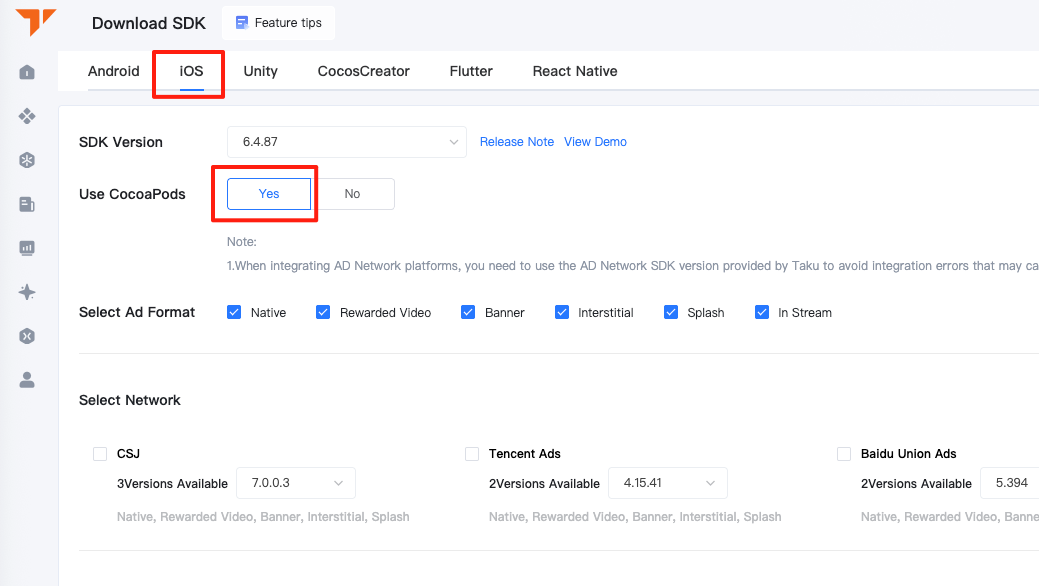
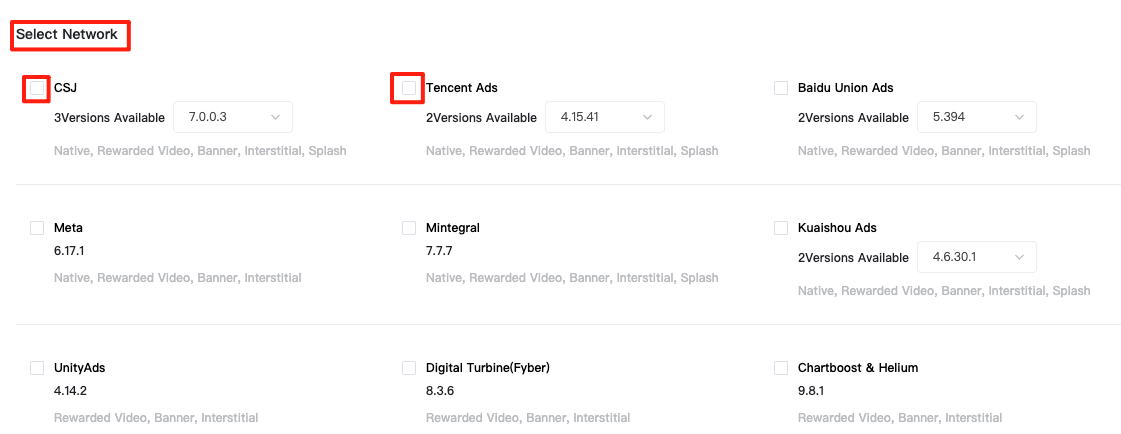
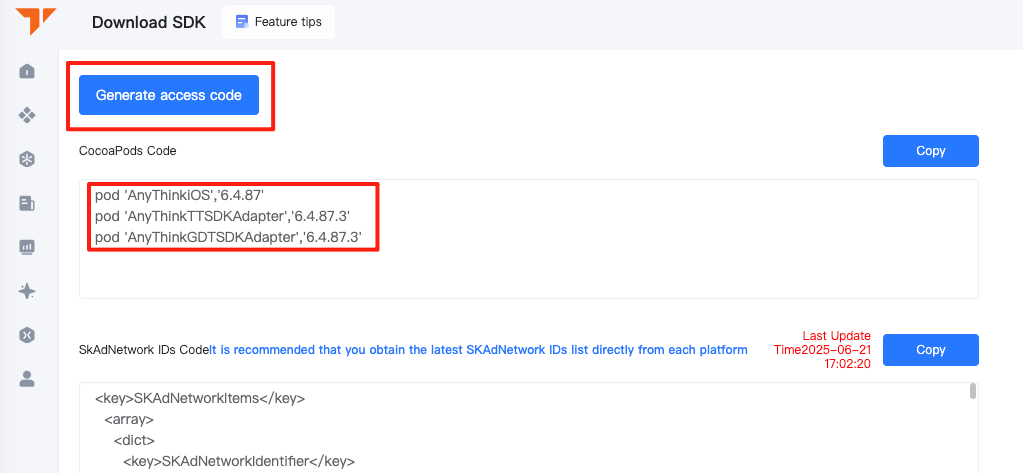
After switching to the path where the podfile is located, execute
pod install --repo-updatein the terminal to install it
2.2 Manual download and import
2.2.1 Manually download Taku iOS SDK
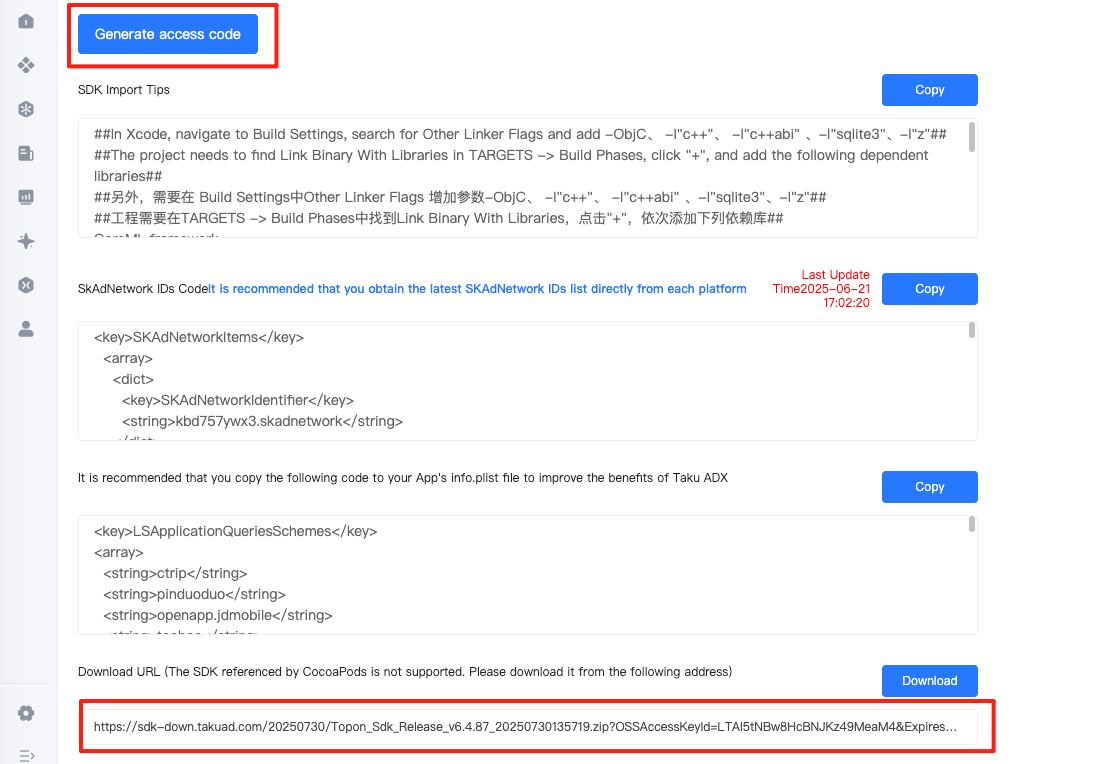
Please click here to go to the SDK Download Center. You can refer to the following sample images, select the advertising platform according to your needs and then download the Taku iOS SDK.
- Please do not leave the SDK Download Center page after downloading the SDK, as the content will be used in the subsequent docking process.
- After you click "Generate Access Code", the system will process your request immediately. After your patient waiting, the download link will be successfully generated and you can click the "Download" button.
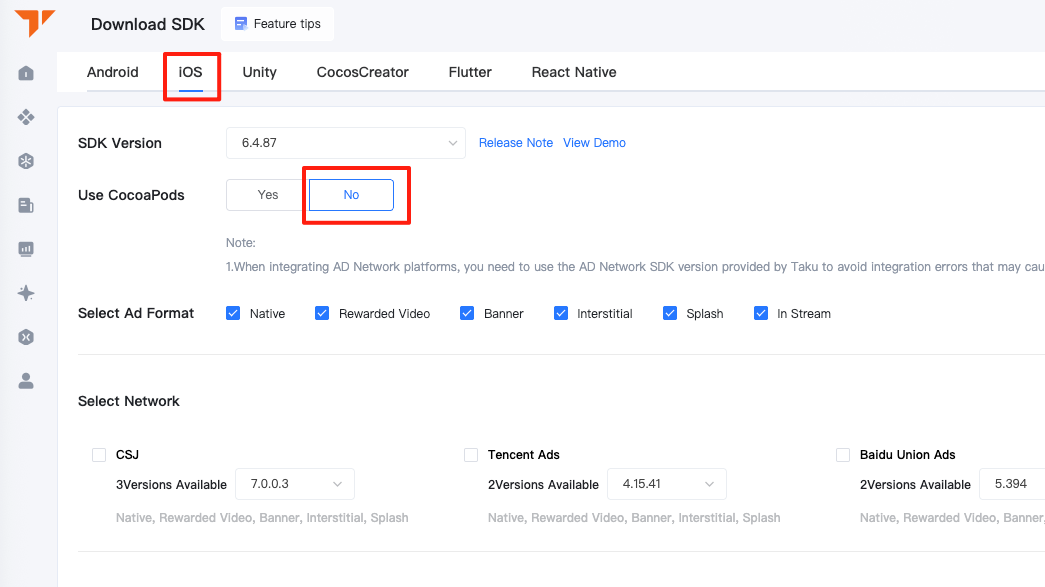
2.2.2 Manually import the Taku iOS SDK
① Please unzip the ZIP file you downloaded in the previous step, and then drag it into your Xcode project.
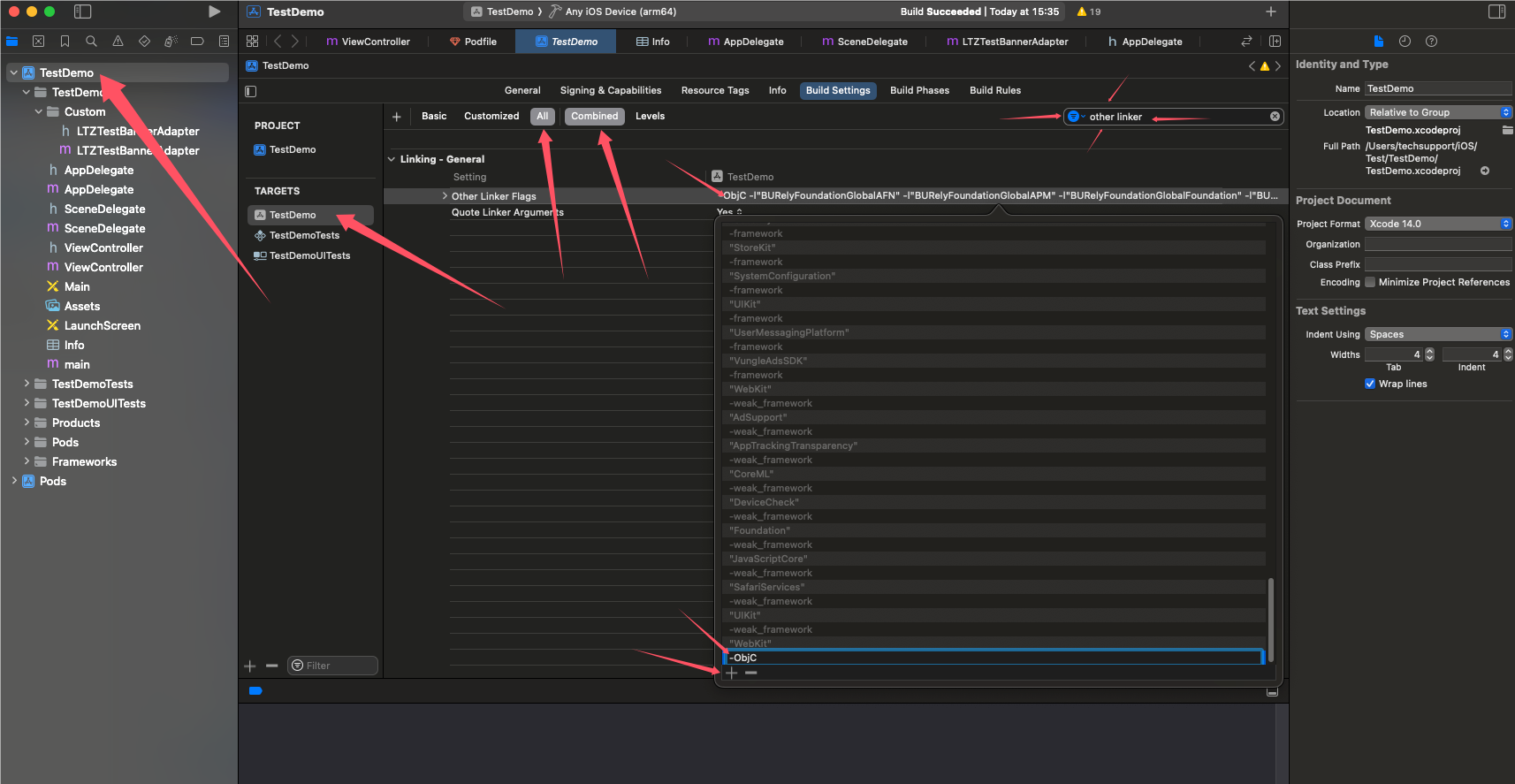
② Modify the Xcode project Build Setting (please refer to the picture below).
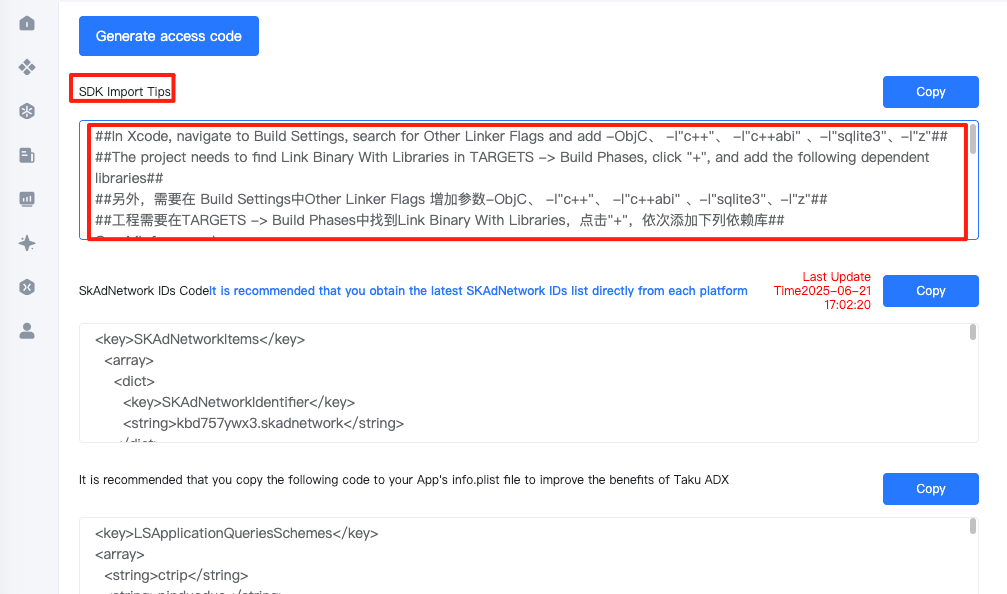
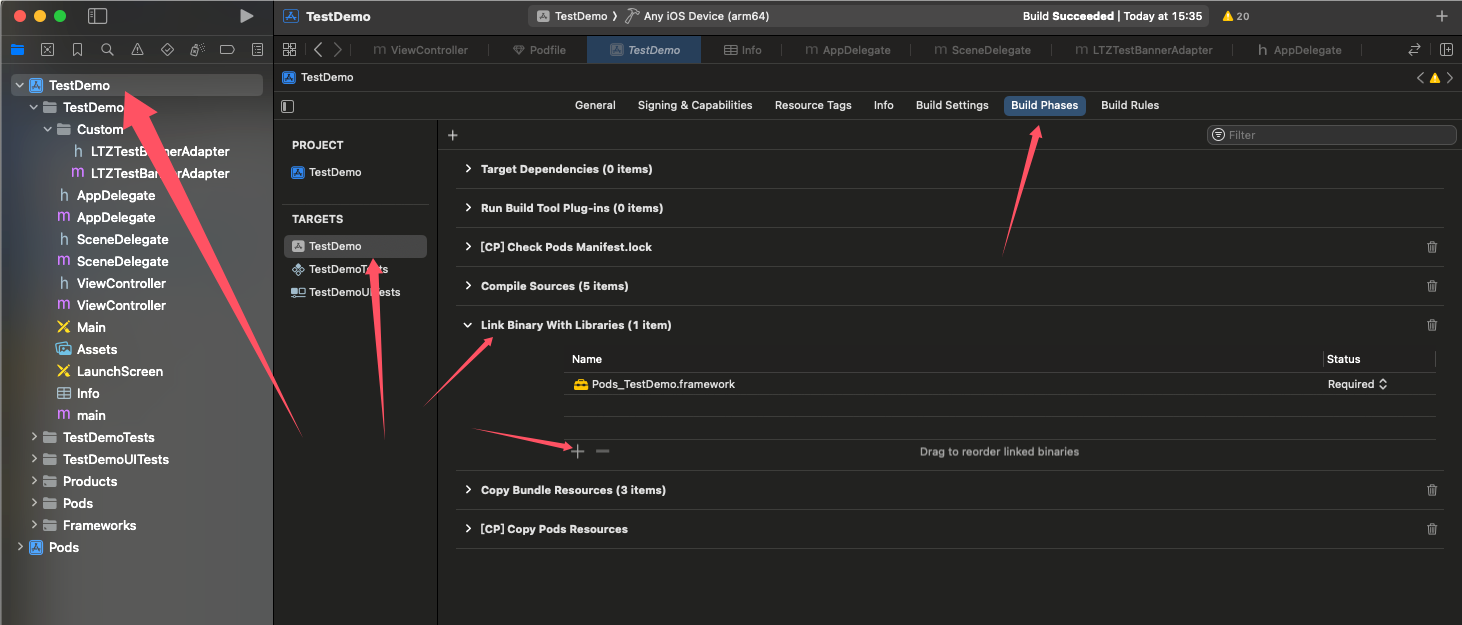
③ Please return to the SDK Download Center page, check the "SDK Import Tips" column, and add the dependencies listed in the column to the Xcode project.
Depending on the type of advertising platform you have selected, the "SDK Introduction Prompt" column may appear additionally (as shown below). If the "SDK Introduction Prompt" column does not appear after you have selected the advertising platform and clicked "Generate Access Code", you can skip this step and continue with the subsequent access process.
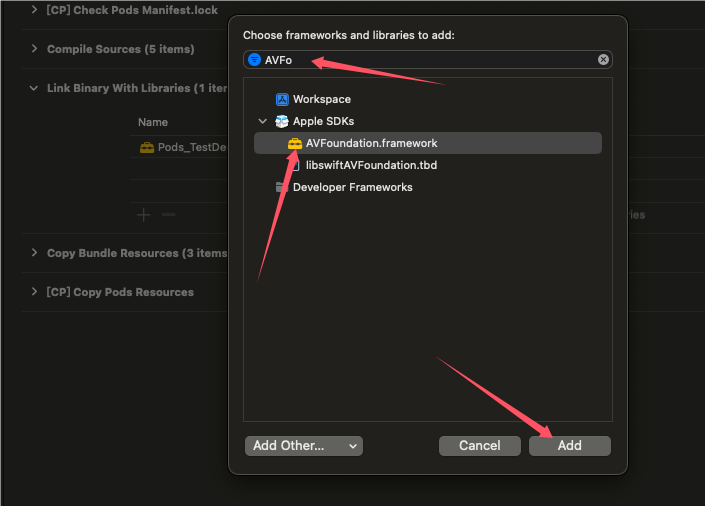
At this point, you have completed the introduction of Taku iOS SDK, but please do not leave the "SDK Download Center" page, as the subsequent docking process will still use its content.
3. Update your Info.plist
3.1 Open Info.plist
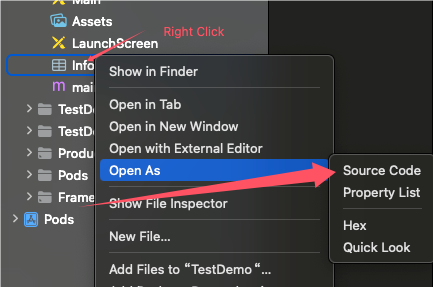
3.2 Add SKAdNetworkItems key
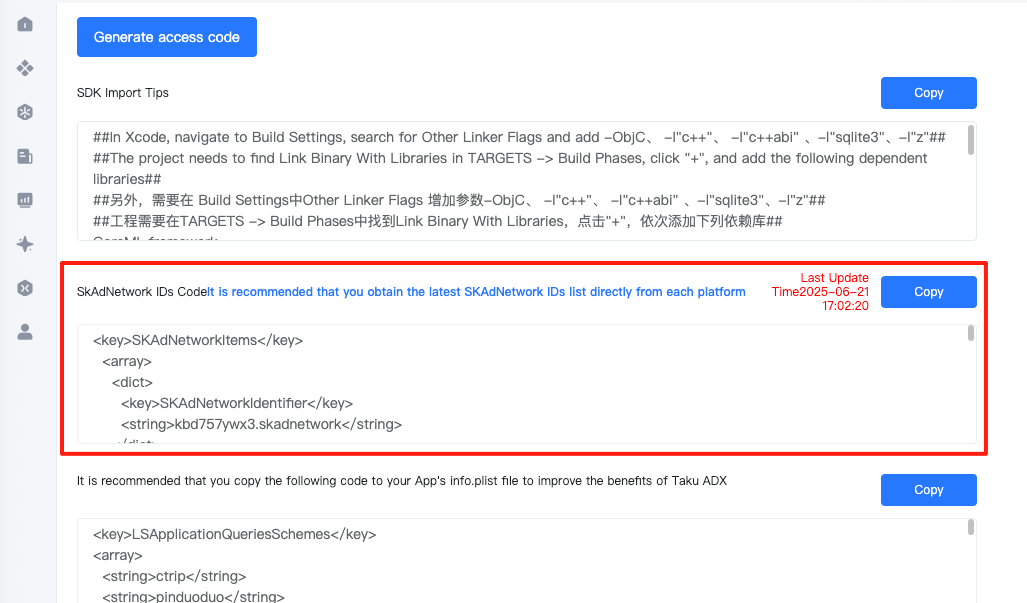
The SKAdNetwork ID of UnityAds is different for each project. If you choose this advertising platform, please refer to the one generated by the UnityAds background. You need to go to the UnityAds management background to check it.
Please return to the " SDK Download Center" page opened above and add the content listed in the "SKAdNetwork IDs Code" column to your Info.plist file, as shown below:
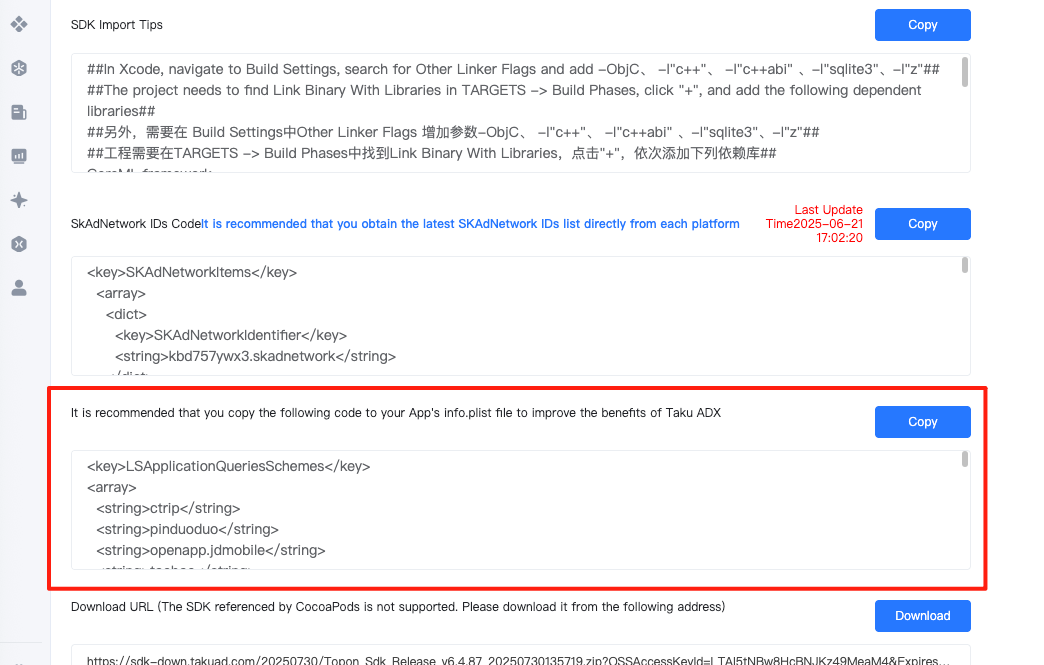
3.3 Add LSApplicationQueriesSchemes key
Please return to the " SDK Download Center" page opened above, or directly copy the code below and add the contents listed in the following columns to your Info.plist file. Please refer to the figure below:
3.4 Add NSUserTrackingUsageDescription key
Starting from iOS14.5, applications can only access users' IDFA data and deliver targeted ads to users with the user's explicit permission.
The IDFA will not be available until the app calls the App Tracking Transparency framework to request app tracking authorization from the end user. If an app does not make this request, the IDFA read will return a string of all 0s.
<key>NSUserTrackingUsageDescription</key>
<string>Write Your ATT Desc</string>
3.5 Add NSAppTransportSecurity key
After iOS 10, the Allow Arbitrary Loads in Web Content key is ignored when it exists.
<key>NSAppTransportSecurity</key>
<dict>
    <key>NSAllowsArbitraryLoads</key>
    <true/>
</dict>
3.6 Adding the GADApplicationIdentifier key to the AdMob platform
Due to AdMob requirements, this key is only added if you check the box to use the platform. For more information, go here .
<key>GADApplicationIdentifier</key>
<string>Your GADApplicationIdentifier </string>
<!-- format eg:ca-app-pub-9488501426181082~7319780494   -->
4. Request app tracking permission from users to obtain IDFA
You need to apply for app tracking permissions from users through App Tracking Transparency.
- Before you use the following method, you need to set the NSUserTrackingUsageDescription key in your Info.plist file. Click here for details.
- If you need to adapt GDPR or Google UMP in your project, please go here to configure it without adding the following code.
#import <AppTrackingTransparency/AppTrackingTransparency.h>
#import <AdSupport/AdSupport.h>
#import <AnyThinkSDK/AnyThinkSDK.h>

@implementation AppDelegate

- (void)applicationDidBecomeActive:(UIApplication *)application {
    if (@available(iOS 14, *)) {
        //iOS 14
        [ATTrackingManager requestTrackingAuthorizationWithCompletionHandler:^(ATTrackingManagerAuthorizationStatus status) {

        }];
    } else {
        NSString * idfaStr = [ASIdentifierManager sharedManager].advertisingIdentifier.UUIDString;
    }
}

@end
In iOS 15 and above, calling this API will prompt for authorization only when the application state is
UIApplicationStateActive. If another permission request is waiting for user confirmation, the authorization prompt will not be displayed. Therefore, you can choose one of the following options as a backup solution:
- After launching the app, wait 1 to 2 seconds to check and apply for permissions.
- Check and apply for permissions in the main controller's
ViewDidAppearmethod.
5. Enable debug logging
 - (BOOL)application:(UIApplication *)application didFinishLaunchingWithOptions:(NSDictionary *)launchOptions {

    //....
    //SDK log switch
    [ATAPI setLogEnabled:YES];//Turn on debug logs
    //....

    return YES;
}
6. SDK integration verification
You can check whether the SDK integration of each advertising platform is normal based on the log output by this method.
Please note that this feature needs to be removed before the package can be put on the shelves.
 - (BOOL)application:(UIApplication *)application didFinishLaunchingWithOptions:(NSDictionary *)launchOptions {

    //....
    //Open SDK logs
    [ATAPI setLogEnabled:YES];//Turn on debug logs

    //After logs open
    [ATAPI integrationChecking];

    return YES;
}
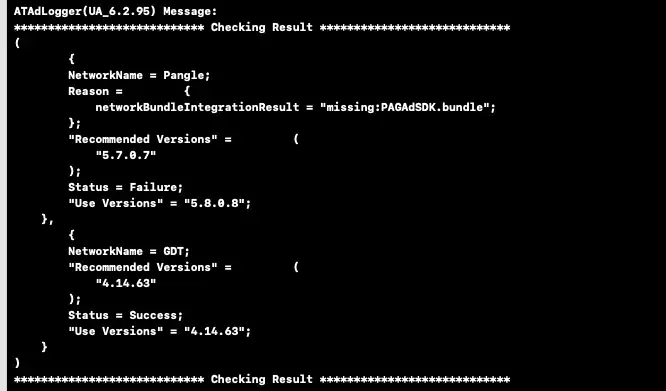
Sample output:
7. Initialize the SDK
⚠️ Important (Required for Compliance)
The initialization method must be called in a way that satisfies all three of the following conditions:
- Call it only after the user has consented to the privacy policy. If your app displays a privacy policy and requests user consent on first launch, see the Taku Privacy Policy and Privacy Compliance.
- Do not call it prematurely during app launch. It must not be placed on startup paths such as
application:didFinishLaunchingWithOptions:orviewDidLoad.- Treat it as a prerequisite for ad loading (load). Within the same call chain, complete initialization first and then perform the load. If initialization does not succeed, do not proceed with loading ads.
💡 Tips
- Safe to call repeatedly: Initialization is idempotent — once the SDK is initialized, subsequent calls return success immediately. It is therefore safe to place initialization before every ad load, and there is no need to maintain your own "initialize only once" flag.
- AppID / AppKey: Obtain these from the app details in the Taku dashboard. The iOS and Android values are not interchangeable — do not mix them up.
- Logging switch:
setLogEnabled:outputs the IDFA and device information and is intended for integration debugging only. Wrap it in#if DEBUG; never ship it in a Release build.
7.1 Sample Code
#import <AnyThinkSDK/AnyThinkSDK.h>

@interface AdManager : NSObject

- (BOOL)configureAdSDK;
- (void)loadAd;

@end

@implementation AdManager

/// Initializes the ad SDK.
/// Idempotent: once the SDK is initialized, repeated calls return success immediately,
/// so it is safe to call this before every ad load.
/// @return Whether initialization succeeded. If NO is returned, do not proceed with loading ads.
- (BOOL)configureAdSDK {
#if DEBUG
    // Outputs the IDFA and device information; for debugging only — never ship in a Release build
    [ATAPI setLogEnabled:YES];
#endif

    NSError *error = nil;
    BOOL success = [[ATAPI sharedInstance] startWithAppID:@"Your AppID"
                                                  appKey:@"Your AppKey"
                                                   error:&error];

    if (!success) {
        NSLog(@"[TaKu] SDK initialization failed domain=%@ code=%ld msg=%@",
              error.domain,
              (long)error.code,
              error.userInfo[@"msg"]);
    }
    return success;
}

/// Loads an ad.
/// Precondition: the user has consented to the privacy policy.
- (void)loadAd {
    // Initialization is a prerequisite for load: initialize first, then load only after it succeeds
    if (![self configureAdSDK]) {
        return;
    }

#if DEBUG
    // Self-check for third-party platform integrations; for debugging only,
    // not a required part of initialization
    [ATAPI integrationChecking];
#endif

    // Once initialization succeeds, proceed with the ad load
    // [self.bannerView loadAd:@"Your PlacementID"];
}

@end;}.cls-2{fill:%230868f7;}.cls-3{fill:url(%23未命名的渐变_44);}.cls-4{fill:%23333;}%3c/style%3e%3clinearGradient%20id='未命名的渐变_8'%20x1='33.73'%20y1='100.61'%20x2='-0.03'%20y2='-1.06'%20gradientUnits='userSpaceOnUse'%3e%3cstop%20offset='0'%20stop-color='%237ae9fb'/%3e%3cstop%20offset='0.67'%20stop-color='%232b90f8'/%3e%3cstop%20offset='1'%20stop-color='%230868f7'/%3e%3c/linearGradient%3e%3clinearGradient%20id='未命名的渐变_44'%20x1='27.86'%20y1='18.67'%20x2='68.36'%20y2='22.22'%20gradientUnits='userSpaceOnUse'%3e%3cstop%20offset='0'%20stop-color='%235ac7f2'/%3e%3cstop%20offset='1'%20stop-color='%230868f7'/%3e%3c/linearGradient%3e%3c/defs%3e%3cpath%20class='cls-1'%20d='M29,28.74V81.91l-9.51-3.68v0L8.52,74A7.17,7.17,0,0,1,4,67.32V24.54A3.76,3.76,0,0,1,9.08,21Z'/%3e%3cpath%20class='cls-2'%20d='M68.09,78.07a13.15,13.15,0,0,1-17.9,12.06L29,81.91h0V28.74L50.19,37A13.17,13.17,0,0,0,68.08,25.3h0Z'/%3e%3cpath%20class='cls-3'%20d='M68.08,25.3a13.19,13.19,0,0,1-6.73,10.87A13.09,13.09,0,0,1,50.19,37L29,28.74V6A3.76,3.76,0,0,1,34.1,2.52l25.59,9.91A13.22,13.22,0,0,1,68.08,25.3Z'/%3e%3cpath%20class='cls-4'%20d='M129.06,81.76a4.33,4.33,0,0,1-3.19-1.31,4.4,4.4,0,0,1-1.31-3.24V56.86H97.65V77.21a4.36,4.36,0,0,1-1.35,3.2A4.68,4.68,0,0,1,93,81.76a4.32,4.32,0,0,1-3.19-1.31,4.37,4.37,0,0,1-1.32-3.24V27.27A4.58,4.58,0,0,1,89.83,24a4.59,4.59,0,0,1,7.82,3.27V48.15h26.91V27.27A4.58,4.58,0,0,1,125.91,24a4.59,4.59,0,0,1,7.82,3.27V77.21a4.37,4.37,0,0,1-1.36,3.2A4.65,4.65,0,0,1,129.06,81.76Z'/%3e%3cpath%20class='cls-4'%20d='M163.77,81.66c-6.57,0-11.76-1.92-15.44-5.7s-5.54-9.07-5.54-15.74a26.76,26.76,0,0,1,2.09-10.43,17.72,17.72,0,0,1,6.67-8.06,19.15,19.15,0,0,1,10.68-2.95,19,19,0,0,1,10.46,2.8,18.7,18.7,0,0,1,6.55,7.36,22.53,22.53,0,0,1,2.36,10.28A4.51,4.51,0,0,1,177,63.77H152.23a10.8,10.8,0,0,0,3.49,6.65c2,1.68,4.88,2.52,8.66,2.52a22.25,22.25,0,0,0,7.54-1.21c.74-.3,1.55-.67,2.37-1.07a3.75,3.75,0,0,1,1.84-.4,4.09,4.09,0,0,1,3,1.15,4,4,0,0,1,1.12,3,4.38,4.38,0,0,1-2.58,3.82,32.34,32.34,0,0,1-6.36,2.61A28.67,28.67,0,0,1,163.77,81.66ZM172.4,55.9a9.72,9.72,0,0,0-1.63-4.56A9.9,9.9,0,0,0,167,48a10.38,10.38,0,0,0-4.64-1.14,12,12,0,0,0-4.77,1.06,9.54,9.54,0,0,0-4.89,5.66,11.78,11.78,0,0,0-.51,2.3Z'/%3e%3cpath%20class='cls-4'%20d='M193,81.64a4.49,4.49,0,0,1-4.51-4.55V27.28A4.58,4.58,0,0,1,189.84,24a4.48,4.48,0,0,1,3.28-1.36A4.36,4.36,0,0,1,196.35,24a4.46,4.46,0,0,1,1.31,3.31V77.09a4.34,4.34,0,0,1-1.35,3.2A4.67,4.67,0,0,1,193,81.64Z'/%3e%3cpath%20class='cls-4'%20d='M263.79,81.71a5.7,5.7,0,0,1-4.2-1.74,5.76,5.76,0,0,1-1.73-4.19V27.37a4.58,4.58,0,0,1,1.35-3.27A4.59,4.59,0,0,1,267,27.37V72.53h24a4.58,4.58,0,0,1,3.27,7.82A4.66,4.66,0,0,1,291,81.71Z'/%3e%3cpath%20class='cls-4'%20d='M424.48,81.74a4.71,4.71,0,0,1-2.71-.88,5.43,5.43,0,0,1-1-1l-.07-.09-12.41-17-5.41,5v9.44a4.31,4.31,0,0,1-1.36,3.19,4.66,4.66,0,0,1-3.3,1.36A4.29,4.29,0,0,1,395,80.42a4.36,4.36,0,0,1-1.32-3.23V27.37A4.58,4.58,0,0,1,395,24.1a4.52,4.52,0,0,1,6.58.12,4.54,4.54,0,0,1,1.24,3.15V56.31l17.72-16.38.05,0a4.8,4.8,0,0,1,2.94-1.11,4.4,4.4,0,0,1,3.27,1.2,4.57,4.57,0,0,1,1.2,3.27,4.44,4.44,0,0,1-.77,2.33,7.45,7.45,0,0,1-1.43,1.65l-11,9.64,13.34,17.68a5,5,0,0,1,1,2.71,4.12,4.12,0,0,1-1.36,3.24A4.64,4.64,0,0,1,424.48,81.74Z'/%3e%3cpath%20class='cls-4'%20d='M317.93,81.76a21.5,21.5,0,1,1,21.17-21.5A21.37,21.37,0,0,1,317.93,81.76Zm0-34.1a12.61,12.61,0,1,0,12.42,12.6A12.52,12.52,0,0,0,317.93,47.66Z'/%3e%3cpath%20class='cls-4'%20d='M212.18,101.22a4.12,4.12,0,0,1-3.05-1.26,4.17,4.17,0,0,1-1.26-3.1V43.34a4.37,4.37,0,0,1,1.3-3.14,4.26,4.26,0,0,1,3.13-1.3,4.19,4.19,0,0,1,3.1,1.26,4.32,4.32,0,0,1,1.26,3.16,20.77,20.77,0,0,1,13-4.54,21.51,21.51,0,0,1,0,43,20.51,20.51,0,0,1-13-4.57V96.86a4.15,4.15,0,0,1-1.3,3.06A4.5,4.5,0,0,1,212.18,101.22Zm17.43-53.63c-6.23,0-12.93,4.11-12.93,12.72a12.73,12.73,0,0,0,25.46,0A12.71,12.71,0,0,0,229.61,47.59Z'/%3e%3cpath%20class='cls-4'%20d='M365.76,81.76a21.5,21.5,0,1,1,21.18-21.5A21.37,21.37,0,0,1,365.76,81.76Zm0-34.1a12.61,12.61,0,1,0,12.42,12.6A12.52,12.52,0,0,0,365.76,47.66Z'/%3e%3c/svg%3e)